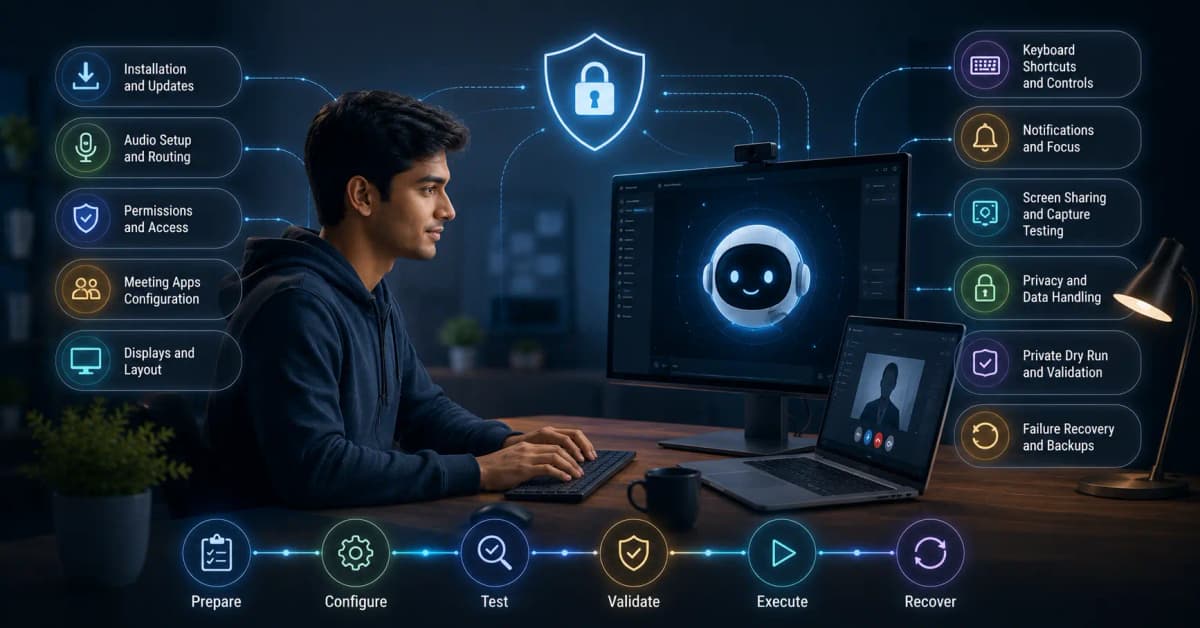

AI Interview Copilots on Zoom, Meet, and Teams
Test an AI interview copilot with Zoom, Google Meet and Microsoft Teams: audio routing, permissions, share modes, capture and backup plans.
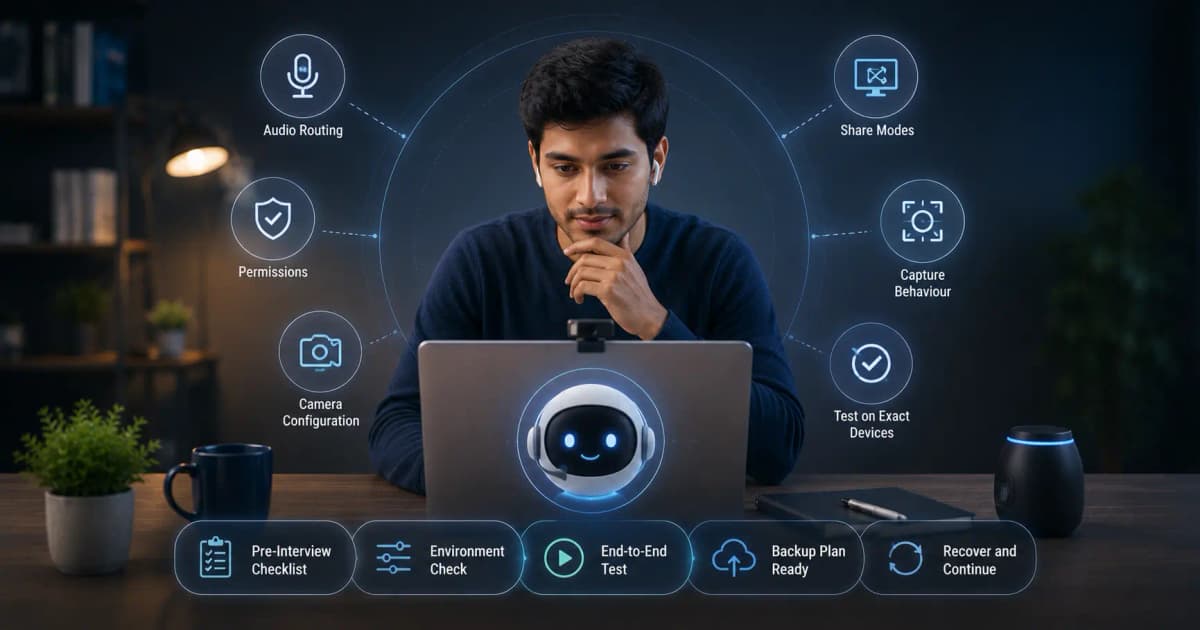
Zoom, Google Meet, and Microsoft Teams can all host a video interview, but they route audio and screen sharing differently. A copilot that works in one setup may fail in another because of the native app versus browser, selected headset, permissions, or share mode. Test the exact route before the interview.
Universal setup
- Update the meeting app/browser and the copilot.
- Use the real headset and output device.
- Join from a second account on another device.
- Confirm the transcript hears the other participant.
- Share full screen, app window, tab, and region where available.
- Review the second account's recording.
- Test a follow-up, interruption, and 10-second silence.
Zoom
Zoom's native client may behave differently from a browser session. Check microphone/speaker selection in Zoom itself, not only Windows. Test entire-screen and window sharing and any advanced window-filtering option your product documentation requires. Verify taskbar previews and multiple monitors.
Google Meet
Meet commonly runs in a Chromium browser. Test tab sharing separately from window and entire-screen sharing; tab sharing may include or exclude tab audio depending on the option selected. Browser permissions, selected site microphone, and extensions can change behavior.
Microsoft Teams
Teams can run as a native app or web client. Confirm which version the interviewer link opens. Test device switching, meeting notifications, presenter mode, and the exact screen/window share option. Enterprise policies can restrict permissions or recording behavior.
InterviewGPT workflow
InterviewGPT's Windows app is designed to capture system audio for major meeting tools and surface live transcript/answer panels. Configure resume, role, and mode before joining. Its Invisible Browser is a separate free embedded-browser workflow; current live-AI limits and paid access appear on pricing.
Use the mobile companion only after testing delay, echo, and where the phone sits. Put a phone call on speaker only if privacy, audio quality, and interview rules permit it.
Screen sharing is configuration-specific
“Hidden during screen share” is not a universal guarantee. OS updates, meeting versions, enterprise security, recording paths, GPU capture, and share selection matter. If your private recording shows the panel, change the setup or do not use it. Never rely on an absolute marketing phrase.
Troubleshooting order
If transcription fails:
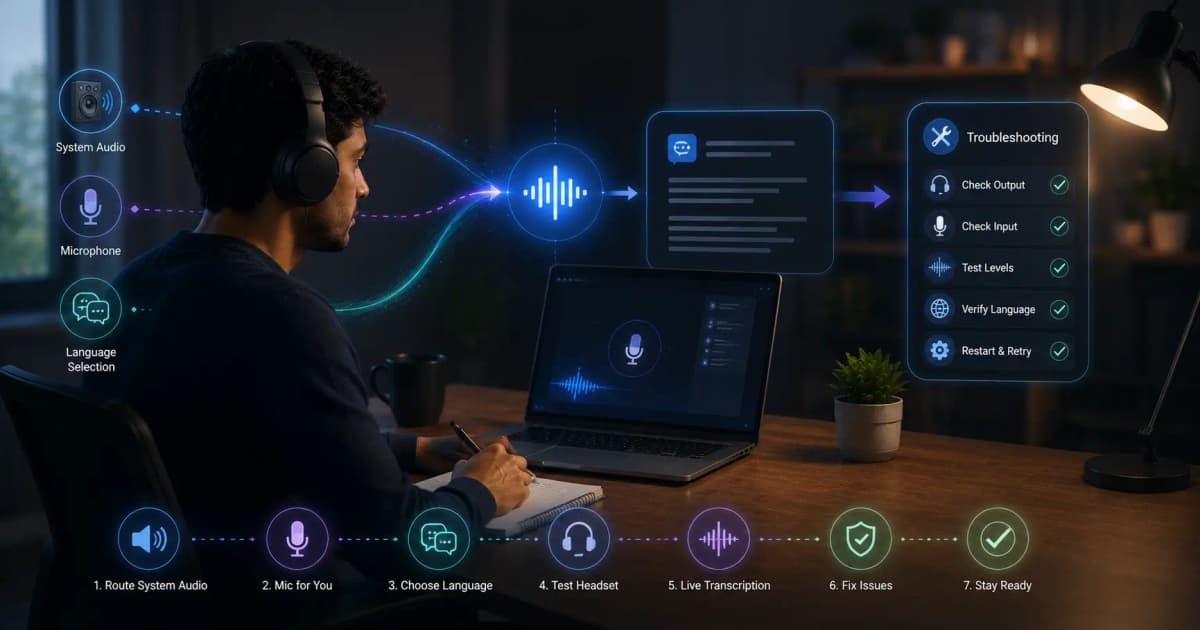
- Confirm the meeting produces audible system sound.
- Check Windows output and meeting-app speaker selection.
- Verify app permissions and selected device.
- Rejoin a private test meeting.
- Try the alternative native/browser client documented by the product.
- Contact support before the interview—not during it.
If suggestions are poor, shorten the requested answer, correct the transcript/context, and verify the right interview mode. If screen capture is wrong, select a smaller safe region.
Day-of-interview checklist
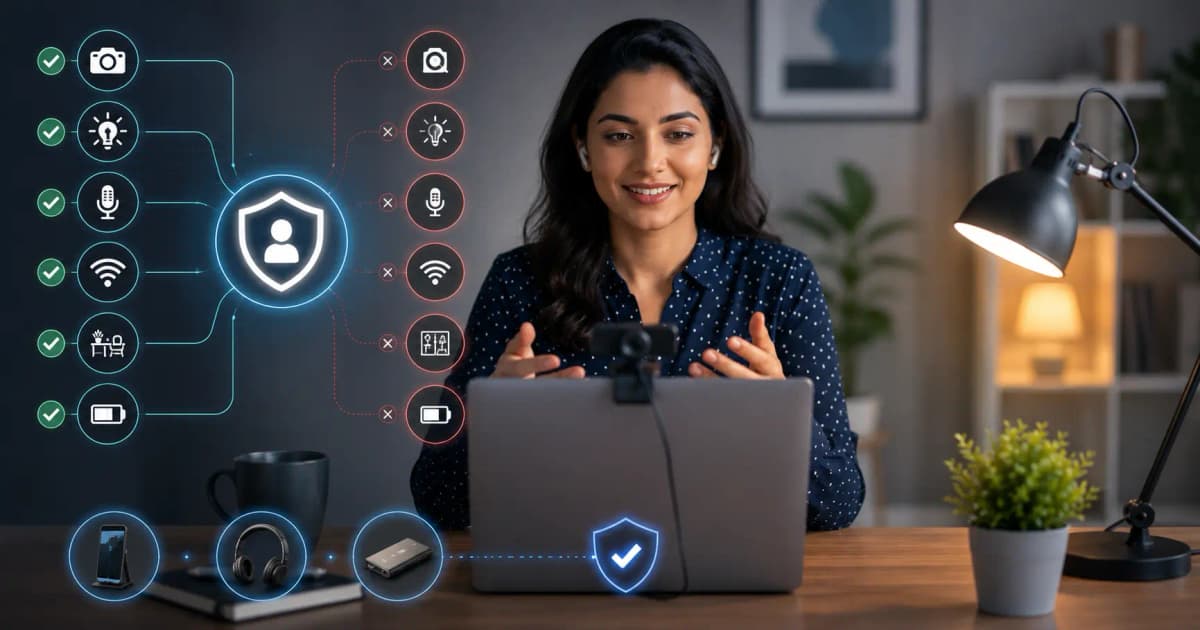
- Join 10–15 minutes early.
- Plug in power and stabilize internet.
- Close private/unrelated windows and silence notifications.
- Confirm the interviewer can hear you.
- Keep a printed no-tool framework.
- Prioritize the conversation over reading any panel.
For full Windows preparation, read the Windows setup guide. To try the workflow, download InterviewGPT.