
Windows AI Interview Copilot Setup Guide
Set up a Windows AI interview copilot: permissions, system audio, meeting apps, screen sharing, shortcuts, dry runs and failure recovery.
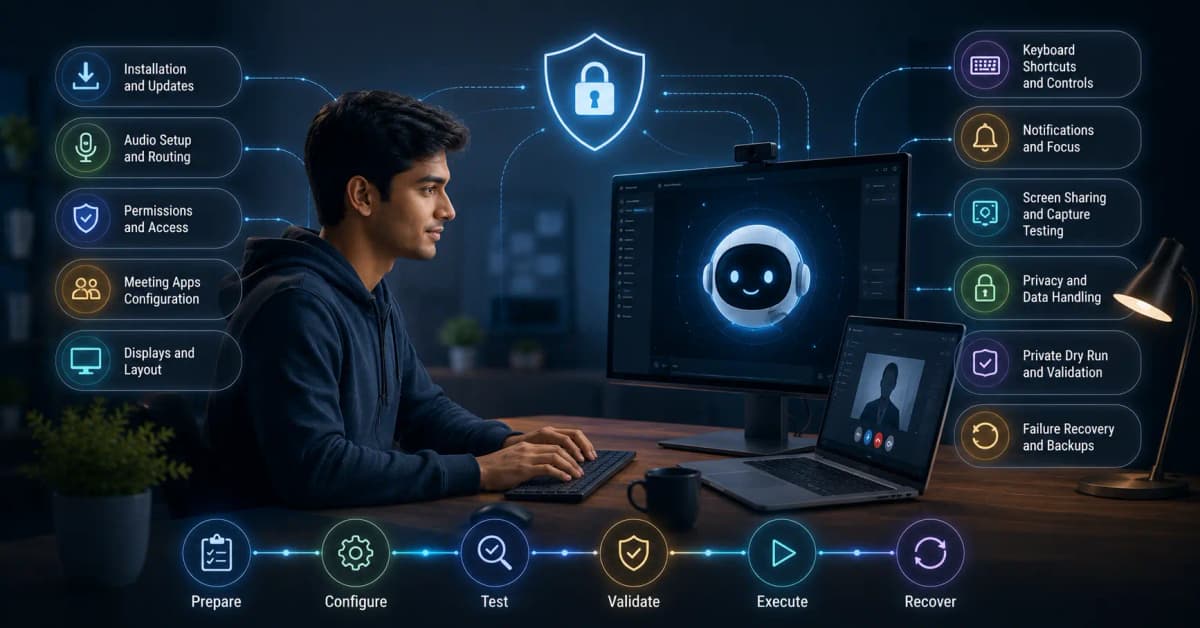
A reliable Windows interview-copilot setup requires more than installing an app. Test audio routing, permissions, meeting capture, keyboard controls, display scaling, notifications, and a no-tool fallback before the real interview.
Before installation
- Confirm the product supports your Windows version and processor architecture.
- Update the meeting app and audio drivers, then restart.
- Know whether the interview uses a browser tab or native Zoom/Teams/Webex client.
- Check whether the employer forbids assistance or software installation.
- Create a sanitized resume and job-description file without confidential data.
Audio setup
Select the same headset and microphone in Windows, the meeting app, and the copilot. Run a private call and confirm the tool hears the other participant rather than only your microphone. Test echo, Bluetooth reconnects, wired fallback, volume changes, and mute behavior.
If transcription is empty, check the selected output device, exclusive audio mode, app permissions, and whether the meeting is actually producing system sound. Do not wait until the real interview.
Screen and display setup
Windows scaling, multiple monitors, HDR, and GPU acceleration can affect overlay position and capture. Test the exact monitor layout. If the product reads a coding prompt, select only the necessary region and verify it did not capture notifications or unrelated windows.
InterviewGPT's desktop app uses Windows/Electron content-protection and taskbar policies. This is designed for common screen-share capture modes, but no app can promise the same outcome on every OS, meeting version, or enterprise configuration.
The four share-mode test
Join the call from a second account and record what the other participant sees while sharing:
- Entire desktop.
- One application window.
- Browser tab.
- Selected region or advanced window-filter mode.
Also check Alt+Tab, taskbar previews, notifications, system tray, recording, and multiple displays. If any mode exposes unexpected content, use a different allowed setup or continue without the app.
Configure InterviewGPT
- Download the current Windows build.
- Sign in and check the current free allowance or paid mode.
- Add accurate resume, target role, and custom instructions.
- Choose general, coding, DSA, or system-design mode as appropriate.
- Set a response length you can scan naturally.
- Learn drag, resize, scrolling, and keyboard shortcuts.
- Test the free Invisible Browser separately from live AI minutes.
- Run the five-question rehearsal from the real-time assistant guide.
Performance and stability
Close unnecessary high-CPU apps, keep the laptop plugged in, use stable internet, and disable only nonessential notifications. Do not disable security software. Have the meeting link, resume, printed talking points, and support contact available outside the copilot.
Recovery checklist
If the app stops responding, stay in the interview. Continue with your prepared framework while you decide whether a restart is appropriate. Never let troubleshooting create a longer silence than the question itself.
Keep these memorized:
- Behavioral: situation → task → action → result → learning.
- Coding: clarify → simple approach → optimize → implement → test.
- Design: requirements → estimates → architecture → deep dive → trade-offs.
Final checklist
- Same Windows, monitors, headset, meeting app, and network tested.
- Second-participant recording reviewed in all share modes.
- Resume/job context accurate and privacy-safe.
- Shortcuts and response length comfortable.
- No-tool fallback ready.
- Current plan limits and session balance understood.
See InterviewGPT pricing or the Zoom, Meet, and Teams guide.