
Live Interview Transcription: System Audio Setup and Troubleshooting
Set up live interview transcription on Windows, test system audio and microphone routing, choose a language, and troubleshoot missing transcript text.
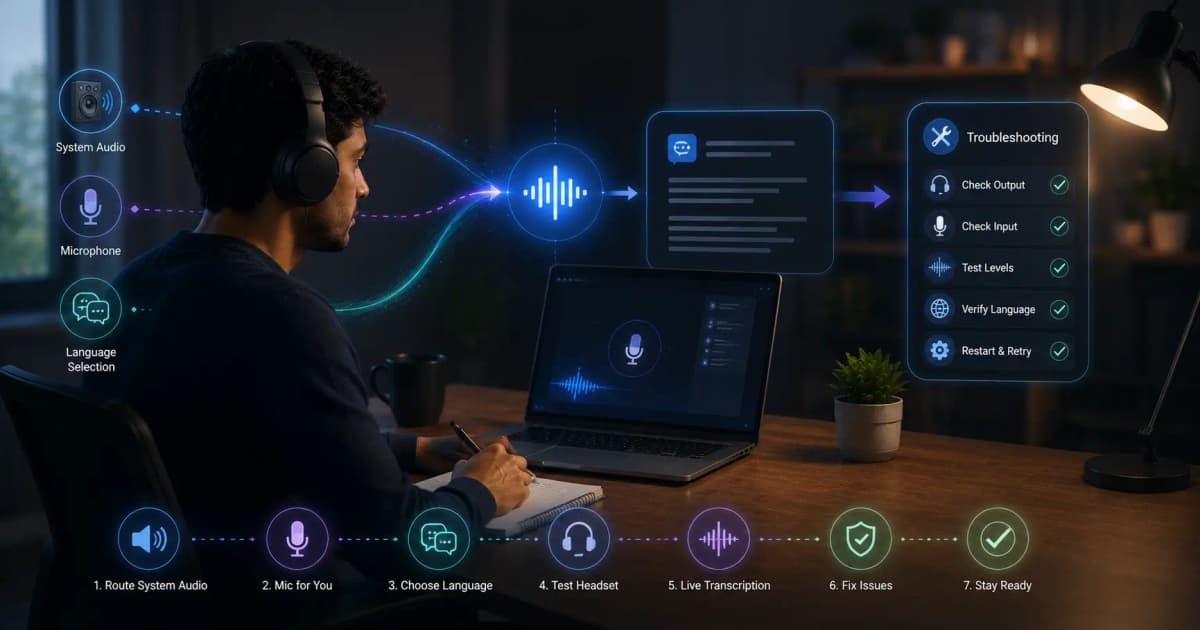
Live interview transcription converts the interviewer’s system audio into text while the conversation is happening. In InterviewGPT, that transcript supplies readable context for the candidate and can be used when generating AI guidance. Reliable transcription starts with the correct Windows audio route, language selection, clean sound, and a private test—not with an accuracy promise.
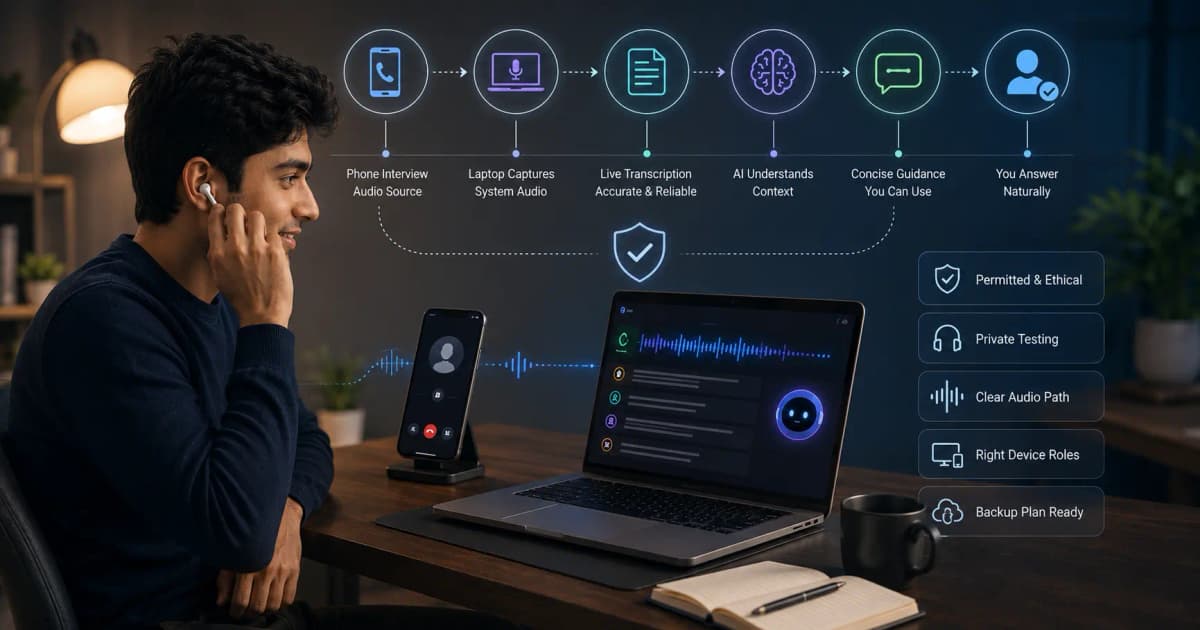
System audio and microphone are different
System audio is sound played by Windows, including the remote interviewer in Zoom, Meet, Teams, Webex, or another meeting app.
Microphone audio is your own voice captured by the selected input device.
An interview assistant may need one or both paths depending on the workflow. If the interviewer is audible through your speakers but the transcript remains empty, the problem is often the system-audio route rather than the microphone.
A five-minute setup sequence
- Connect the headset or speakers you will actually use.
- Open Windows Sound settings and confirm the default output.
- Confirm the meeting app uses that same output device.
- In InterviewGPT, choose the intended microphone and transcription language.
- Join a private meeting and play or speak a test question from the remote account.
- Confirm the transcript bar shows the remote question.
- Change one setting at a time if it fails.
Avoid changing devices after the live session begins. Bluetooth headsets can expose separate profiles for high-quality output and call audio; switching profiles can affect routing and quality.
Choose the correct transcription language
InterviewGPT exposes a session language choice and requests transcription configuration for that language. Select the main spoken language in advance. Mixed-language or Hinglish conversations can be harder than a single-language test, especially with technical names and abbreviations.
Build a vocabulary list containing:
- your name and company names;
- role-specific acronyms;
- programming languages and frameworks;
- product names;
- common Indian place names;
- metrics likely to appear in your examples.
You cannot guarantee every proper noun will be recognized, so remain ready to interpret from context.
Test transcript quality with a controlled script
Ask the remote participant to read:
Tell me about a project where you reduced API latency by 35 percent. What trade-offs did you make, and how did you measure the result?
This sentence tests ordinary language, a technical term, a number, and a multipart follow-up. Check:
- whether the beginning and end are captured;
- whether “API latency” is correct;
- whether 35 percent is preserved;
- whether punctuation makes the question readable;
- how quickly partial text becomes final text.
Repeat with the accent, language, and device expected in the real call.
Troubleshooting: no system transcript
The meeting output device differs from Windows
Align the meeting app’s speaker/output selection with the Windows device used in the test. Restart the private call after changing it.
The device changed after launch
End the practice session, reconnect the headset, select it consistently, and start again. Hot-swapping can leave one process attached to the old endpoint.
The interviewer is too quiet
Raise meeting output to a comfortable level without causing echo. Ask the remote participant to check their microphone rather than using aggressive amplification.
Bluetooth quality drops
Test a wired headset or laptop speakers in a private environment. Bluetooth call profiles can trade audio quality for two-way voice support.
Security software blocks capture
Review Windows privacy controls and approved enterprise policies. Do not disable organizational security software without authorization.
Troubleshooting: inaccurate text
- Reduce background noise and speaker echo.
- Use a stable network connection.
- Select the correct language.
- Ask the speaker to avoid talking over another participant.
- Increase volume moderately.
- Confirm technical terms yourself before acting on a suggestion.
- Treat numbers, names, and negation words as high-risk details.
If the transcript says “do cache” when the interviewer said “do not cache,” the meaning changes completely. Use your ears and the visible text together.
How the transcript should be used
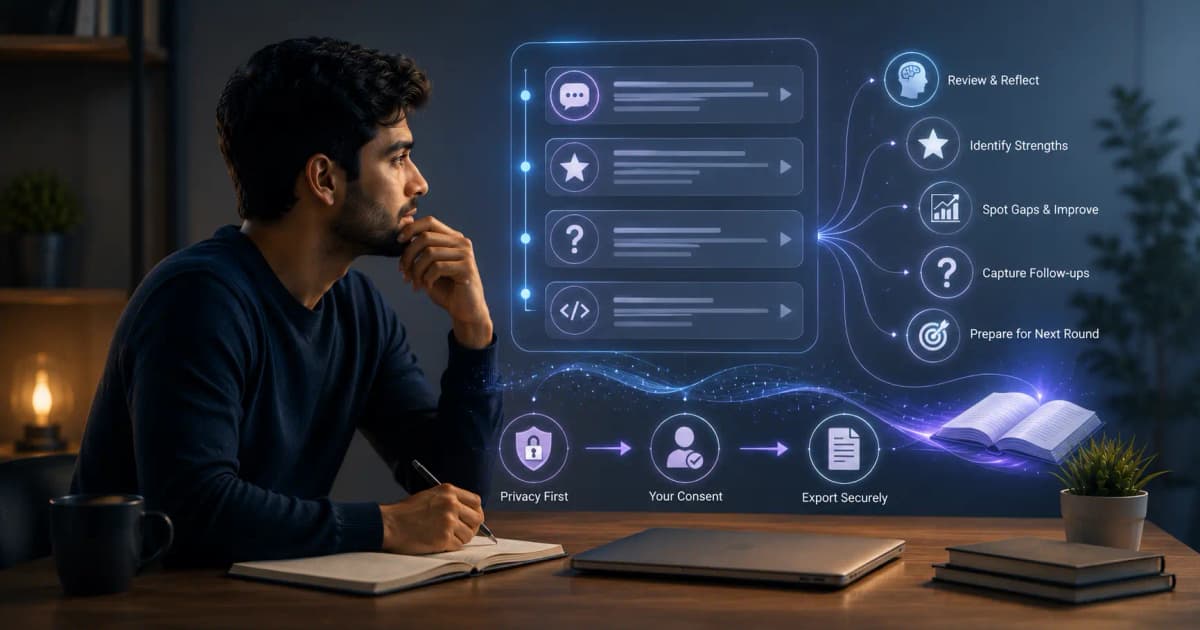
The transcript is a memory and context aid. It helps retain multipart questions, review the conversation, and provide an input to AI answer guidance. It is not a legally authoritative record and may contain recognition errors.
During an answer:
- Identify the actual question.
- Confirm any ambiguous constraint verbally.
- Use the transcript as a reminder.
- Answer in your own words.
- Correct misunderstandings naturally.
Privacy and retention
Raw audio and transcript retention are different. InterviewGPT’s public FAQ says raw audio is processed live rather than kept as a permanent recording, while saved session history can retain transcripts and generated notes. Review the current privacy policy, obtain consent where required, and avoid discussing confidential material in an unapproved tool.
InterviewGPT features that work with transcription
Live text can feed AI answers, resume-aware suggestions, the AI answer panel, mobile companion, and session history. Screen Vision is a separate user-triggered visual input. Keeping these input types separate makes it easier to diagnose whether a problem comes from audio, context, or a screenshot.
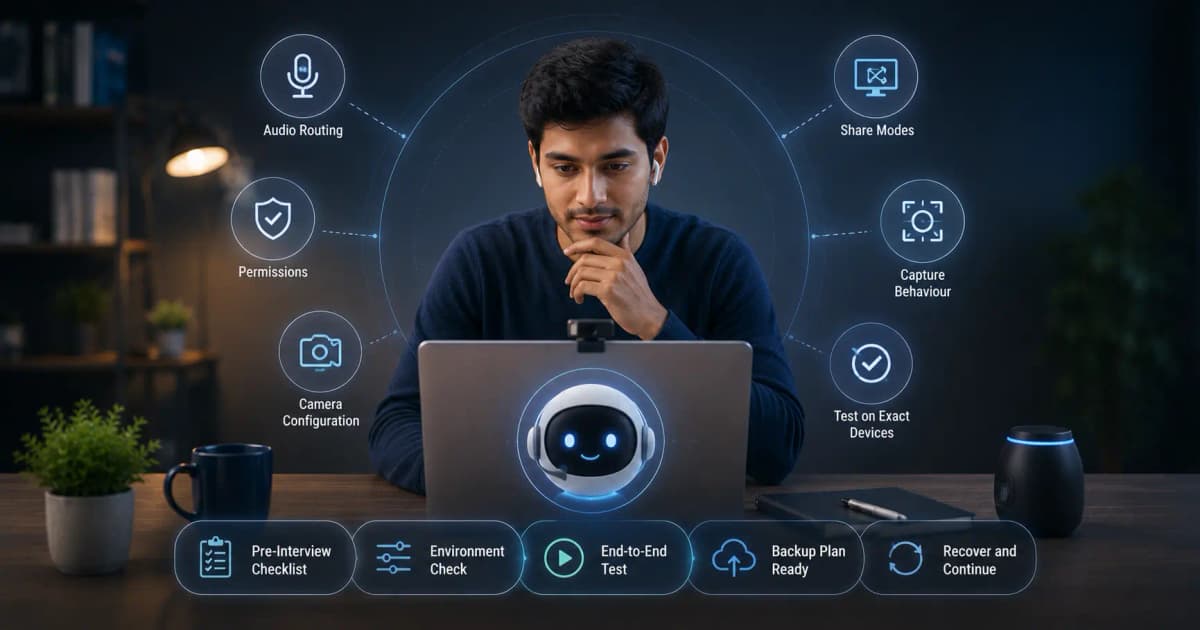
Pre-interview checklist
- Correct Windows output device
- Correct meeting-app output device
- Intended microphone
- Correct transcription language
- Stable network
- Private test question captured from start to finish
- Notifications disabled
- Latest InterviewGPT release
- Fallback notes available
Bottom line
Reliable live interview transcription is an audio-routing discipline. Match the Windows and meeting devices, select the language, test a realistic question, and verify high-risk details yourself.
Download InterviewGPT, run a private audio test, and then configure resume-aware context before the real session.
Sources
The setup flow was reviewed against InterviewGPT’s Windows audio and transcription code, public feature page, privacy policy, and FAQ on July 19, 2026.