
Video Interview Tips: Setup Checklist and Common Mistakes
Use this video interview checklist for camera, lighting, audio, bandwidth, eye line, notes, privacy, and a backup plan across major meeting platforms.
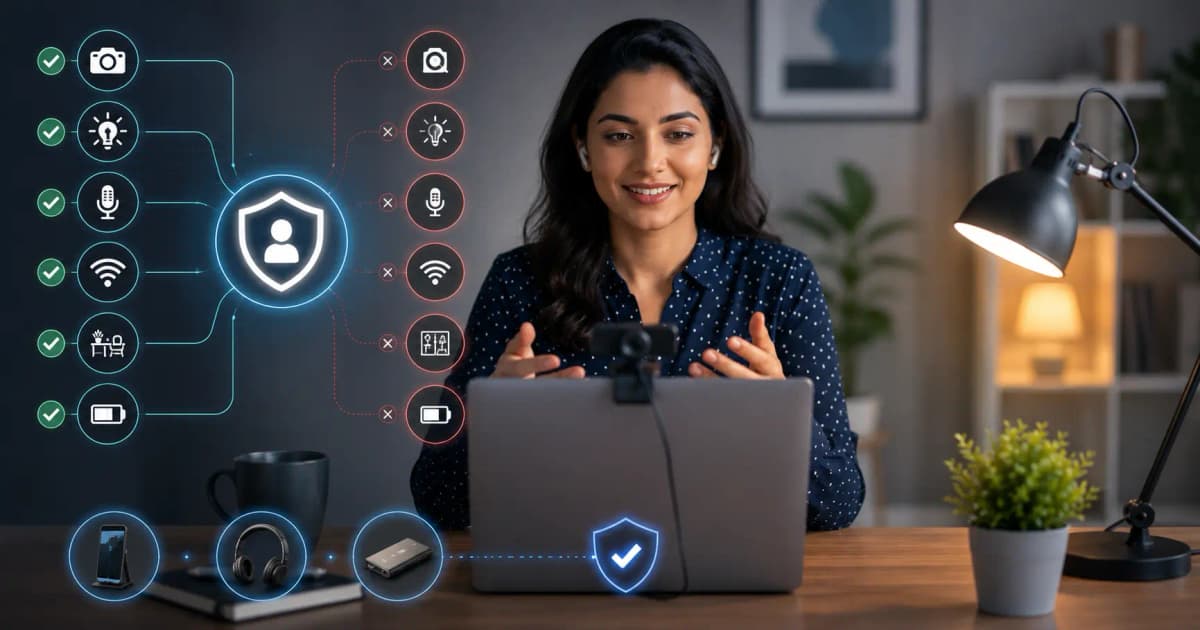
The most important video interview tips are practical: test the exact meeting link, use clear audio, place the camera near eye level, light your face from the front, remove interruptions, and keep a backup connection plan. Technical calm creates room for better answers.
The day-before setup checklist
- Open the exact platform and install required updates.
- Confirm the account name is professional.
- Test camera framing and background.
- Select the intended microphone and speaker.
- Run a private call to check echo and volume.
- Place the router or connection where it is stable.
- Charge the laptop and backup phone.
- Confirm time zone, calendar link, and contact person.
- Learn how to rejoin if disconnected.
Do not wait until five minutes before the interview to approve permissions.
Camera and lighting
Put the camera close to eye level and frame head and shoulders with a small amount of space above. Face a window or diffuse light; avoid a bright window directly behind you. Clean the camera lens.
Look at the camera when making an important point, but natural glances at the interviewer’s image are fine. Constantly staring at the lens can look unnatural.
Audio matters more than video quality
Use a quiet private room. Test whether a headset microphone sounds clearer than the laptop microphone. Mute notifications and other devices. If echo appears, use headphones or lower speaker volume.
Tell household members the interview window and create a practical interruption plan.
Notes without losing presence
Use a small sheet with story names, job priorities, and questions—not full scripts. Place it near the camera. Reading paragraphs creates a flat voice and wandering eye line.
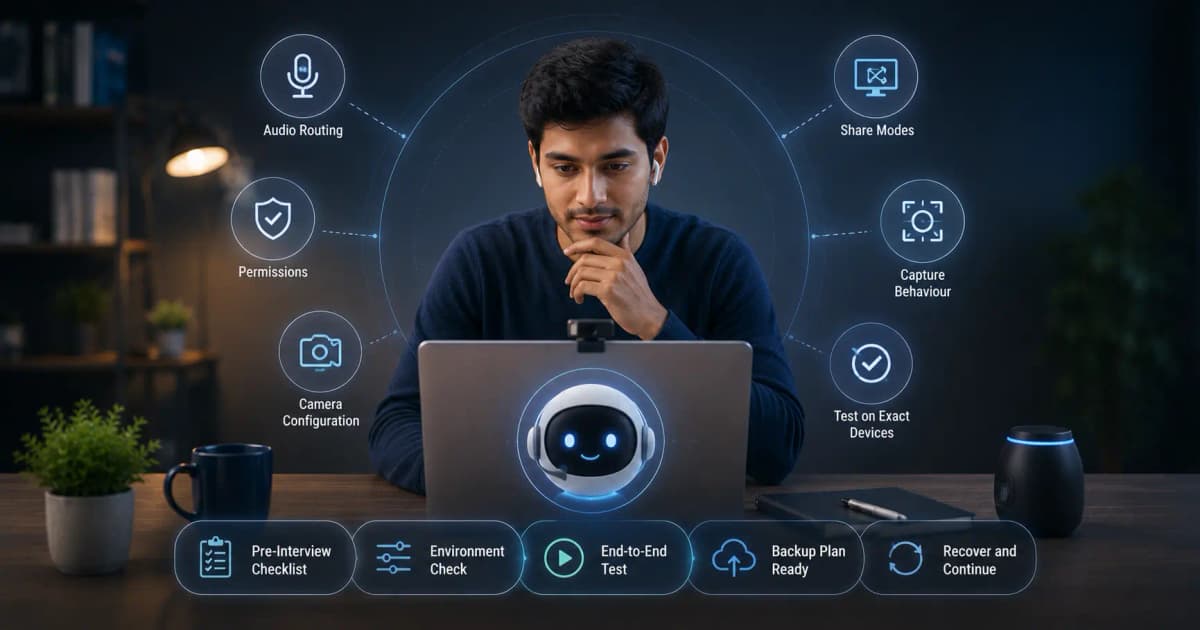
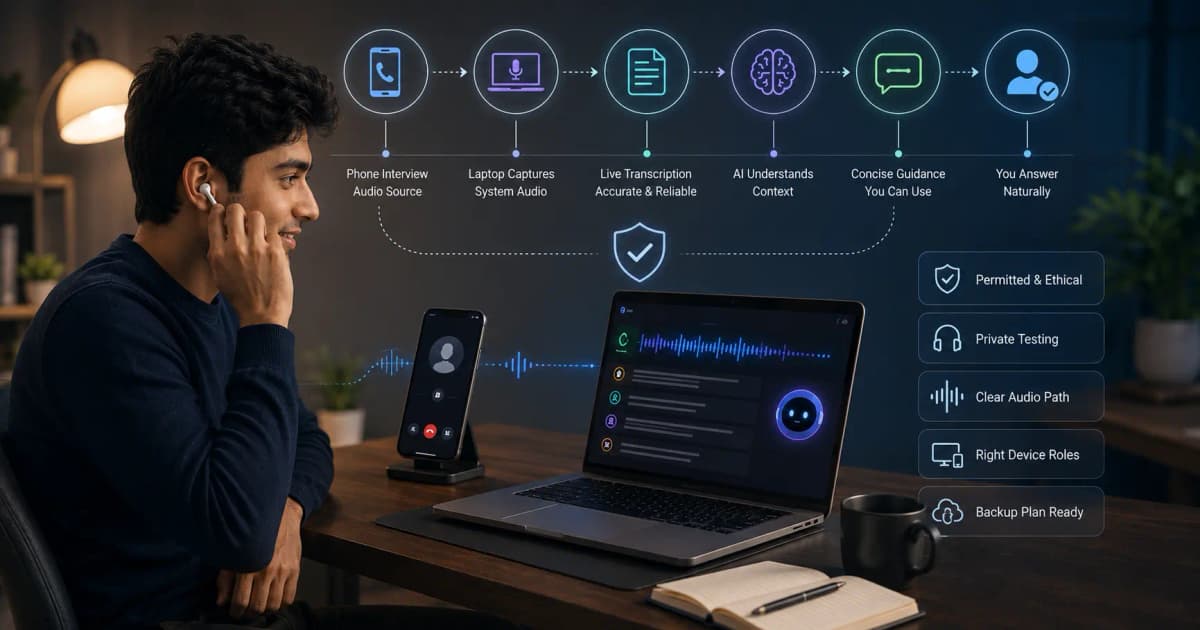
If using InterviewGPT where permitted, select compact controls, rehearse keyboard shortcuts, and position suggestions so you need only a brief glance. The Zoom, Meet, and Teams guide covers platform-oriented testing.
Share the correct screen
Confirm whether the interviewer asked for a window, tab, or entire display. Close personal messages and unrelated applications before sharing. Test content protection and capture behavior on your exact Windows and meeting configuration; no application should claim universal invisibility across all setups.
Follow the interviewer’s assistance and screen-sharing rules. If tools are prohibited, do not use them.
Build a backup plan
Keep the recruiter’s contact details, meeting link, and a charged phone available. If disconnected, rejoin once, then send a short message. Do not spend several minutes repeatedly clicking without communicating.
A good message is: “I lost the connection and am rejoining now. If it does not recover, may I use the phone number in the invitation?”
Ten common mistakes
- Joining with an untested account
- Backlighting the face
- Using a noisy open room
- Reading full answers from another screen
- Looking at self-view throughout
- Leaving notifications visible
- Sharing the wrong display
- Running large downloads or updates
- Having no reconnect plan
- Using unapproved assistance
A 15-minute rehearsal
Record a private local test or call a trusted person. Answer “Tell me about yourself,” one behavioral question, and one role-specific question. Check sound, pacing, framing, eye line, and whether notes distract you. Delete test recordings you do not need.
Bottom line
A strong video setup should disappear from your attention. Test once, simplify the desk, prioritize audio, and enter with a clear backup plan.
Download InterviewGPT and test the permitted Windows workflow before interview day.
Sources
- InterviewGPT supported workflow information
- Follow the official help documentation for your meeting platform and employer.