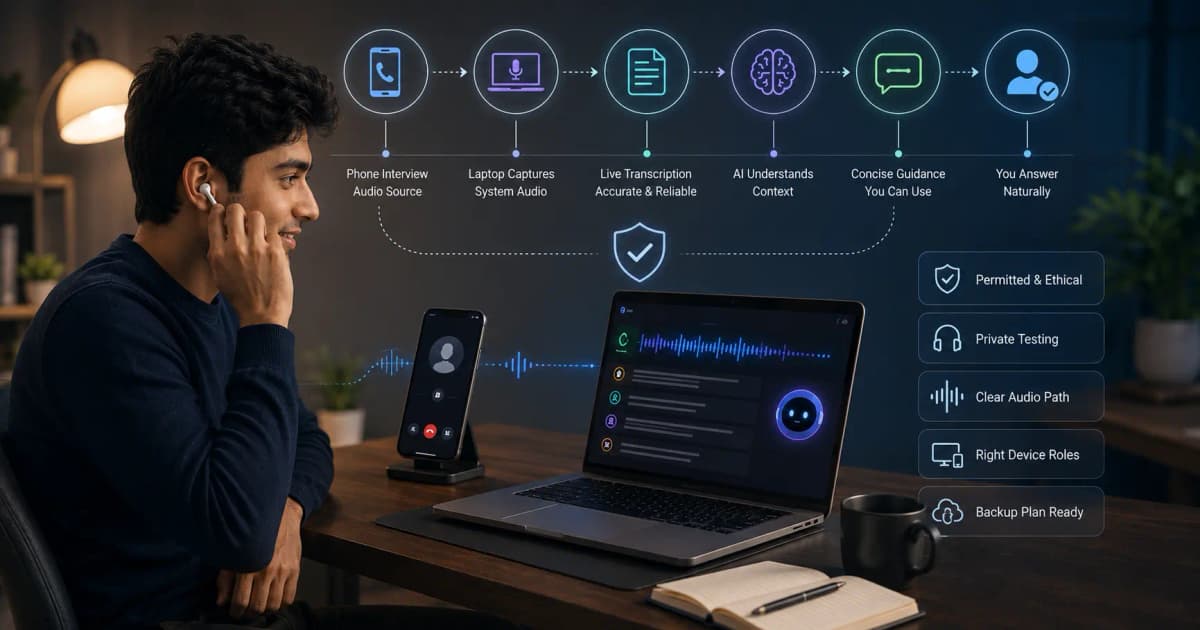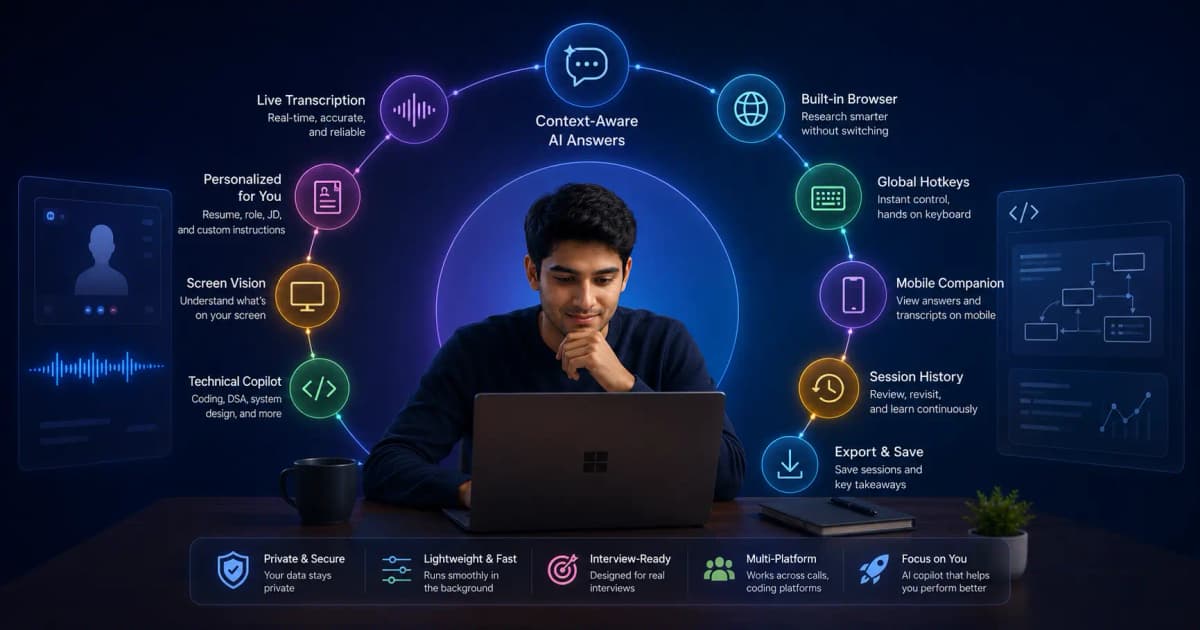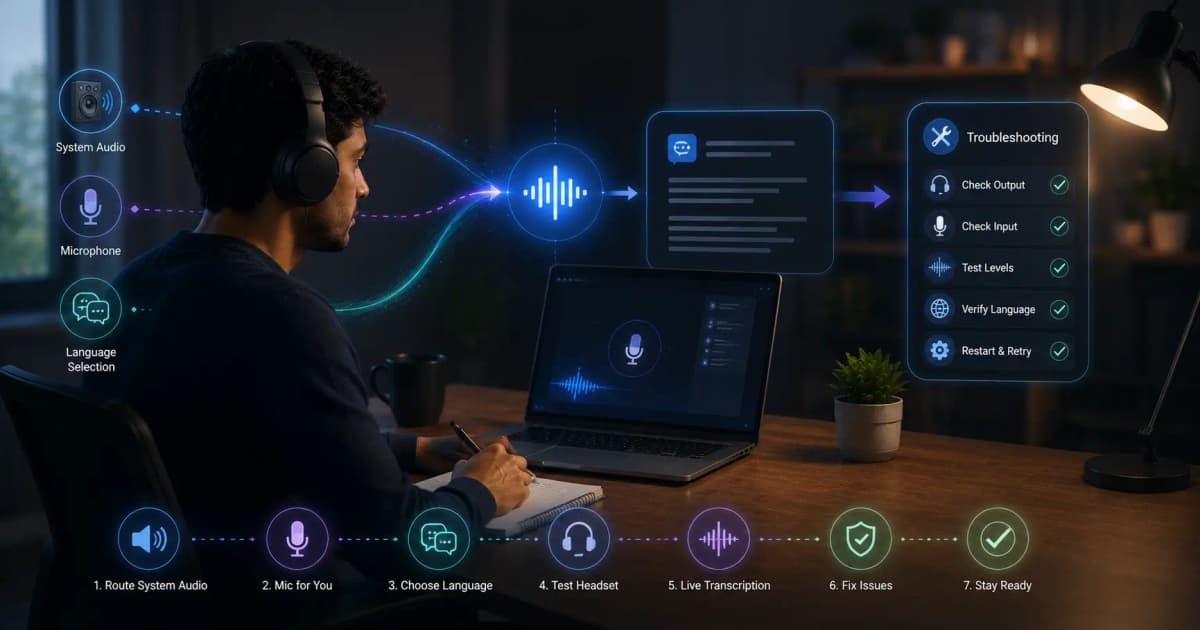

Mobile Companion for AI Interviews: InterviewGPT Desktop-to-Phone Workflow
Learn how InterviewGPT's mobile companion connects to a Windows interview session, mirrors transcript context and controls, and recovers from disconnects.
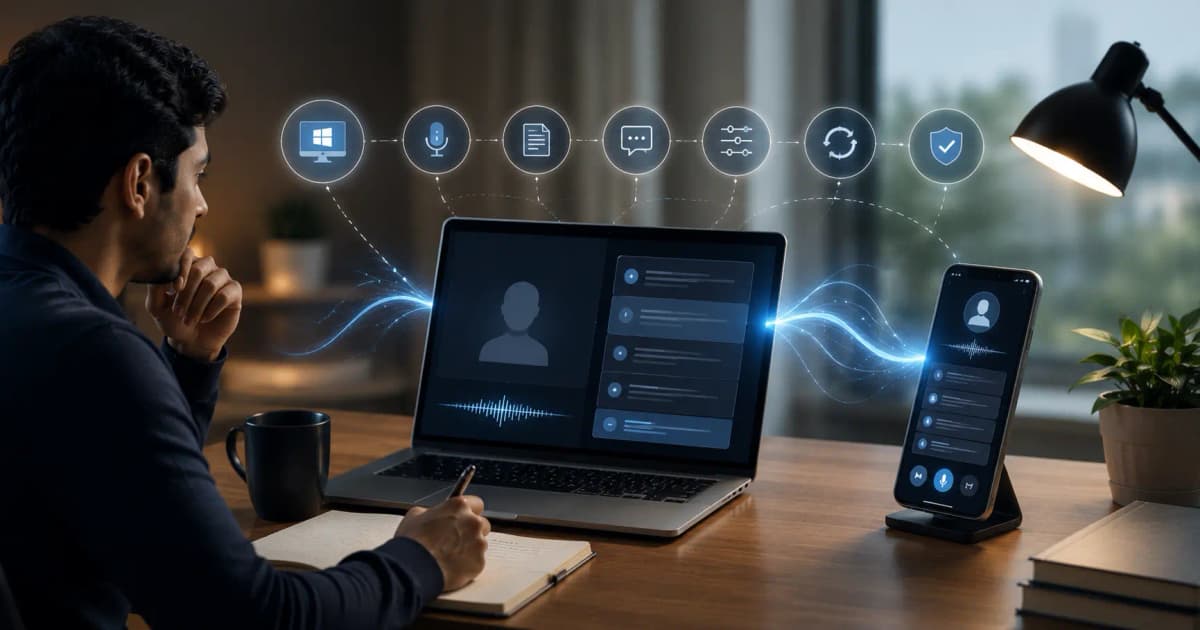
InterviewGPT’s mobile companion connects a phone browser to an active Windows interview session. It can show the synchronized transcript and answer timeline, receive Screen Vision previews, and send supported commands back to the desktop session. The Windows app remains the primary session host and audio source.
This design gives candidates a second viewing surface without pretending that a phone alone can replace desktop system-audio capture.
What the mobile companion does
The current workflow can synchronize:
- live and finalized transcript text;
- AI answer and chat messages;
- Screen Vision preview and analysis activity;
- connection and session state;
- session timer information;
- supported commands such as requesting an answer or screen analysis;
- recovery state when the phone reconnects.
The exact controls can evolve with releases, so use the current in-app instructions.
What it does not do
The phone companion is not:
- a separate unlimited session;
- a substitute for the Windows desktop app;
- an independent source of the interviewer’s Windows system audio;
- a promise that both devices remain connected on an unstable network;
- permission to record or retain interview content.
The desktop session determines the billing mode, context, transcription, and main lifecycle.
Why use a second device?
A phone can be useful when the desktop is occupied by a meeting, code editor, presentation, or shared screen. It can provide a compact secondary timeline for permitted practice or interview use.
Potential benefits include:
- less overlap with the main desktop workspace;
- a separate view of recent transcript and answer content;
- supported controls without moving the desktop pointer;
- recovery of recent session context after a temporary phone disconnect.
The cost is added complexity: another screen, battery, network path, and potential source of distraction.
Recommended setup
- Start InterviewGPT on the Windows computer.
- Configure the resume, role, language, and audio devices.
- Start the intended desktop/mobile-enabled session flow.
- Open the provided mobile route on your own phone.
- Confirm that the phone shows the correct session.
- Test one transcript, one AI answer, and—if permitted—one screen capture.
- Lock in placement, brightness, charging, and orientation before the real call.
Never send the private companion link or session identifier to another person.
Connection and recovery behavior
The mobile workflow uses realtime session state and presence signals. If the phone briefly disconnects, the app can resynchronize recent transcript and timeline state when it returns. Recovery is bounded; do not assume every unsent action survives a network outage.
Test these scenarios:
| Scenario | Expected check |
|---|---|
| Phone screen locks briefly | Reopen and confirm recent context returns |
| Wi-Fi changes to mobile data | Confirm session identity and timeline |
| Desktop network pauses | Ensure the desktop remains the source of truth |
| Duplicate command tap | Verify only the intended request runs |
| Session ends on desktop | Confirm the phone shows the ended state |
If the companion shows stale content, stop sending commands until connection state is clear.
Prevent distraction
Use Do Not Disturb, silence unrelated notifications, keep the phone below the webcam line, and avoid frequent scrolling. Increase text size before the session instead of adjusting it during a question.
The best companion layout shows only the latest relevant content. A second device should lower cognitive load, not create another dashboard to manage.
Privacy and device safety
- Use your own secured phone.
- Keep the operating system and browser updated.
- Do not share session links or screenshots.
- Avoid public Wi-Fi for sensitive conversations.
- Lock the phone when leaving the desk.
- Review and delete stored exports according to your needs and current policy.
- Follow interview, recording, and confidentiality rules.
Because transcript and answer content can be personal, treat the phone view as sensitive even if it is temporary.
When desktop-only is better
Use only the desktop when the phone adds distraction, company policy prohibits additional devices, the network is unreliable, or the interview requires strict device controls. Simpler is often safer.
The mobile companion is an optional workflow—not a requirement for InterviewGPT’s core transcription and answer features.
Practice drill
Run a ten-minute mock call:
- Ask a behavioral question.
- Confirm the phone displays the transcript.
- Request one AI answer from the supported control.
- Trigger a harmless Screen Vision example.
- Lock and unlock the phone.
- Reconnect and verify recent timeline order.
- End the session from the desktop.
Record any delay or duplication and resolve it before a real interview.
Bottom line
InterviewGPT’s mobile companion is a synchronized second surface for an active Windows session. It is most valuable when it reduces desktop clutter and remains stable in a private rehearsal.
Download InterviewGPT, review the complete feature guide, and test the companion on your own devices.
Sources
The workflow was reviewed against InterviewGPT’s current mobile session route, realtime bridge, desktop IPC commands, and recovery logic on July 19, 2026.