
How to Use an AI Interview Assistant for Phone Interviews on a Laptop
Set up a permitted AI interview assistant workflow for phone interviews using laptop audio or an InterviewGPT mobile companion, with a private test plan.
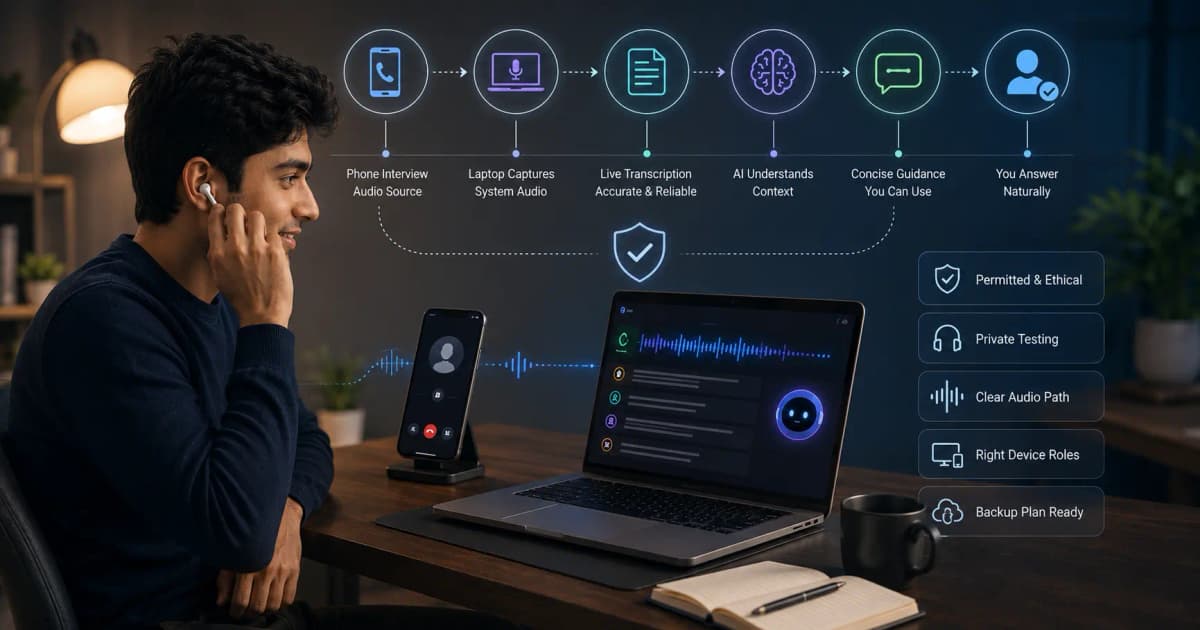
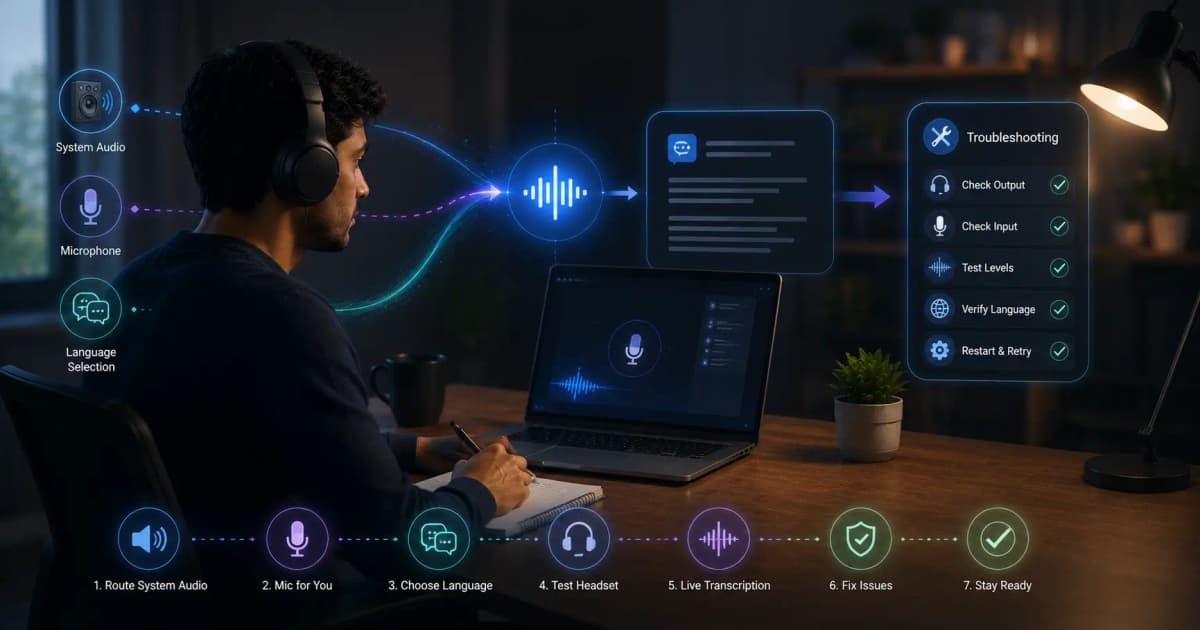
An AI interview assistant can support a phone interview only when the laptop receives a clean, permitted audio source. The simplest setup is often to take the call through a desktop calling or meeting app that plays remote audio through Windows. A traditional cellular call on a separate phone requires a deliberate audio plan and may produce lower transcription quality.
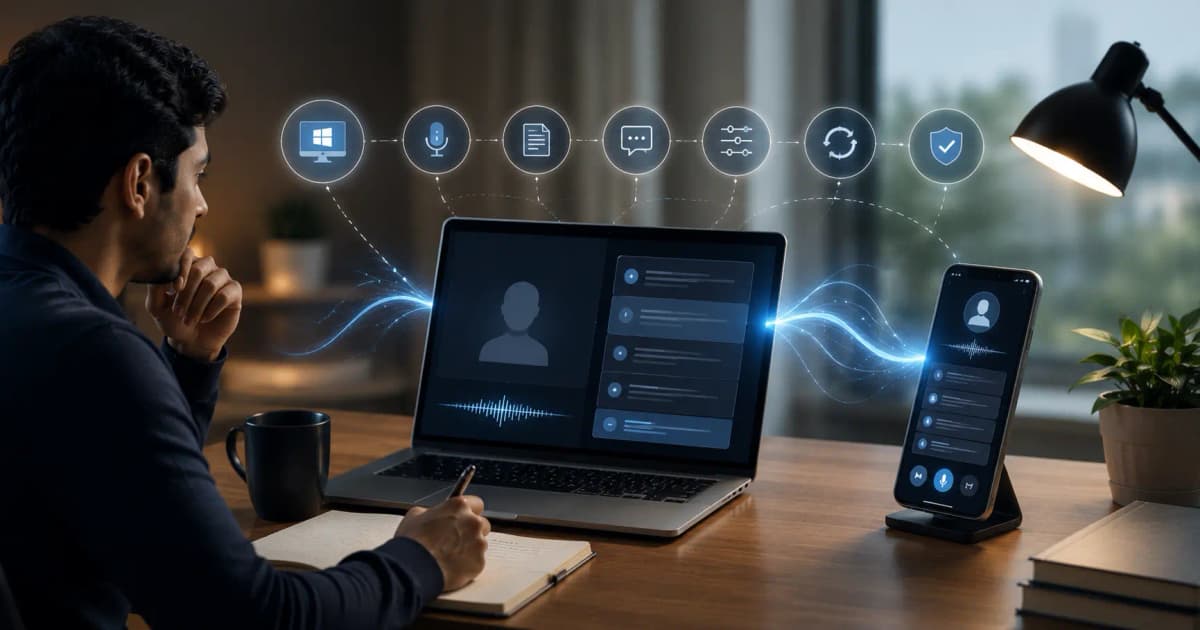
InterviewGPT is Windows-first and also provides a mobile companion to an active desktop session. Test the exact phone and laptop workflow privately before a recruiter call.
Choose one of three phone-interview setups
Setup A: the call runs on Windows
If the recruiter uses Teams, Zoom, Meet, Webex, or another supported desktop audio app, the remote voice plays through Windows. This is usually the cleanest transcription path.
Setup B: cellular phone on speaker near the laptop
The laptop microphone may hear both sides acoustically. This can introduce echo, room noise, and privacy problems. Use only in a quiet private room and test whether the transcript distinguishes speech reliably.
Setup C: phone plus InterviewGPT mobile companion
The companion can show synchronized session context and supported controls, but the Windows desktop session remains primary. It does not automatically route a cellular caller’s audio into Windows.
The recommended workflow
When possible, ask whether the phone screen can use an official desktop meeting or calling link. Do not change the interviewer’s process without agreement. If the call must stay cellular, conduct a private audio test using the same phone, room, distance, and Windows microphone.
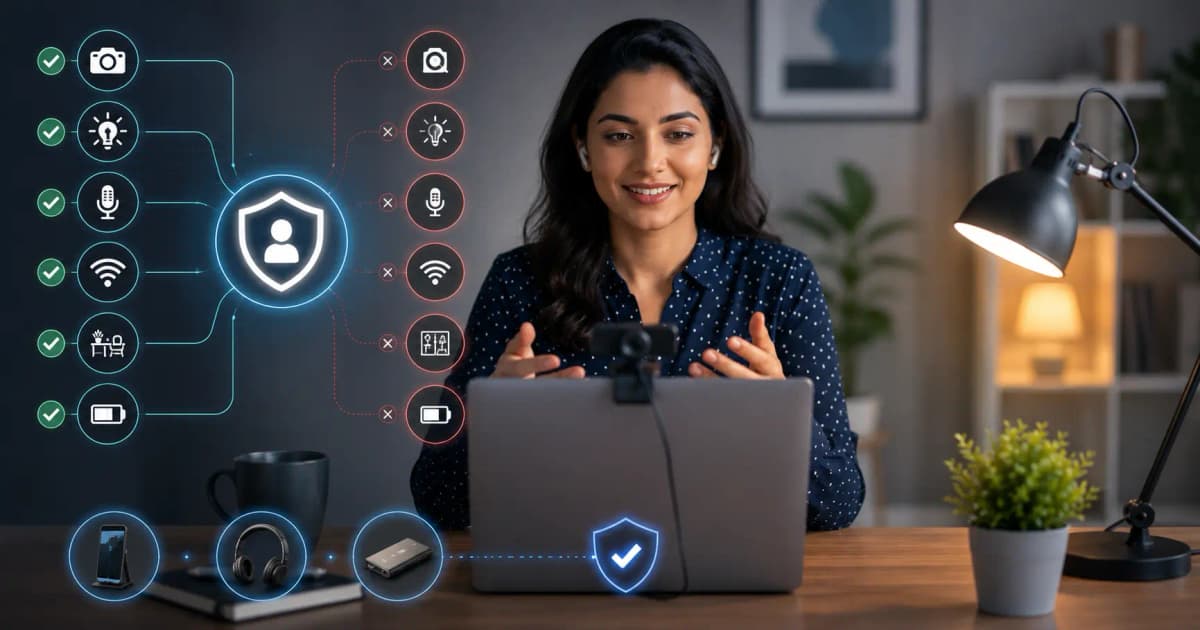
Audio setup checklist
- Quiet private room
- Stable phone and laptop power
- Do Not Disturb on both devices
- Correct Windows input and output devices
- No speaker feedback loop
- Phone positioned at a consistent distance
- Correct transcription language
- Private test call from another phone
- Fallback pen-and-paper notes
Never use a public cafe or shared room for a sensitive phone screen.
Test a realistic recruiter question
Ask the remote tester:
Walk me through your current role, why you are considering a change, and what salary range you are targeting.
This tests a multipart phone-screen question and sensitive details. Confirm that the transcript captures the three parts separately. Do not place salary, identity, or confidential employer data in custom instructions unless necessary and appropriate.
Configure answer guidance for phone screens
Phone interviews reward brevity because visual cues are absent. Use custom instructions such as:
Give a direct answer followed by two short evidence points. Keep recruiter-screen answers under 60 seconds. Use only verified resume facts. For salary questions, remind me to clarify role scope and total compensation rather than inventing a number.
Prepare compact context for:
- current role and responsibilities;
- reason for moving;
- notice period and location;
- role interest;
- relevant achievement;
- compensation approach;
- questions for the recruiter.
Keep the laptop interaction quiet
Use keyboard shortcuts only after rehearsal. Avoid loud typing, clicking, or repeatedly moving windows. Place the laptop so you can glance without turning away from the phone microphone. If using speakerphone, do not put the laptop speakers close enough to create an echo loop.
The shortcuts and compact mode page can help reduce unnecessary pointer movement.
Privacy and consent
Phone calls may have stricter recording and consent rules. Live transcription and saved session history are different from a permanent raw-audio recording, but the transcript can still contain another person’s words and personal data.
Review the privacy policy, follow local law and employer rules, and do not retain or share the transcript without appropriate permission. If the interviewer prohibits assistance or external devices, do not use the workflow.
Common failure modes
Only your voice appears
The laptop microphone hears you but not the phone speaker. Reposition the phone in a private test or move the call to an approved Windows audio app.
Echo duplicates the transcript
Lower speaker volume, increase device separation, or use a cleaner routing method. Do not continue if the remote caller hears feedback.
Phone changes audio mode
Incoming calls, Bluetooth devices, and speaker toggles can reroute audio. Enable Do Not Disturb and use the exact tested configuration.
Suggestions are too long
Change custom instructions to a direct sentence plus two talking points. Phone screens move quickly.
The mobile companion disconnects
Keep speaking normally. The phone companion is optional. Let the desktop remain the source of truth and reconnect only during a natural pause.
A ten-minute rehearsal
- Start the chosen setup.
- Ask five standard recruiter questions.
- Check remote audio transcription.
- Practice glancing at two-point suggestions.
- Lock and unlock the companion phone if used.
- End the session and review the transcript.
- Remove any unnecessary sensitive context.
Where InterviewGPT fits
InterviewGPT supports major Windows meeting platforms, live transcription, resume-aware suggestions, natural-answer instructions, compact controls, history, and a mobile companion. A phone-only cellular call still depends on an acceptable audio route into the Windows session.
Bottom line
The best phone-interview workflow is the simplest permitted setup that produces clean audio. Prefer an approved desktop calling path, test cellular speaker routing if necessary, and keep the mobile companion optional.
Download InterviewGPT, run a private phone test, and read the live transcription guide.
Sources
The workflow was reviewed against InterviewGPT’s Windows transcription, mobile companion, and public platform-support information on July 19, 2026.