
InterviewGPT Keyboard Shortcuts and Compact Mode Workflow
Use InterviewGPT keyboard shortcuts, compact mode, panel controls and app movement confidently with a practice workflow for Windows interviews.
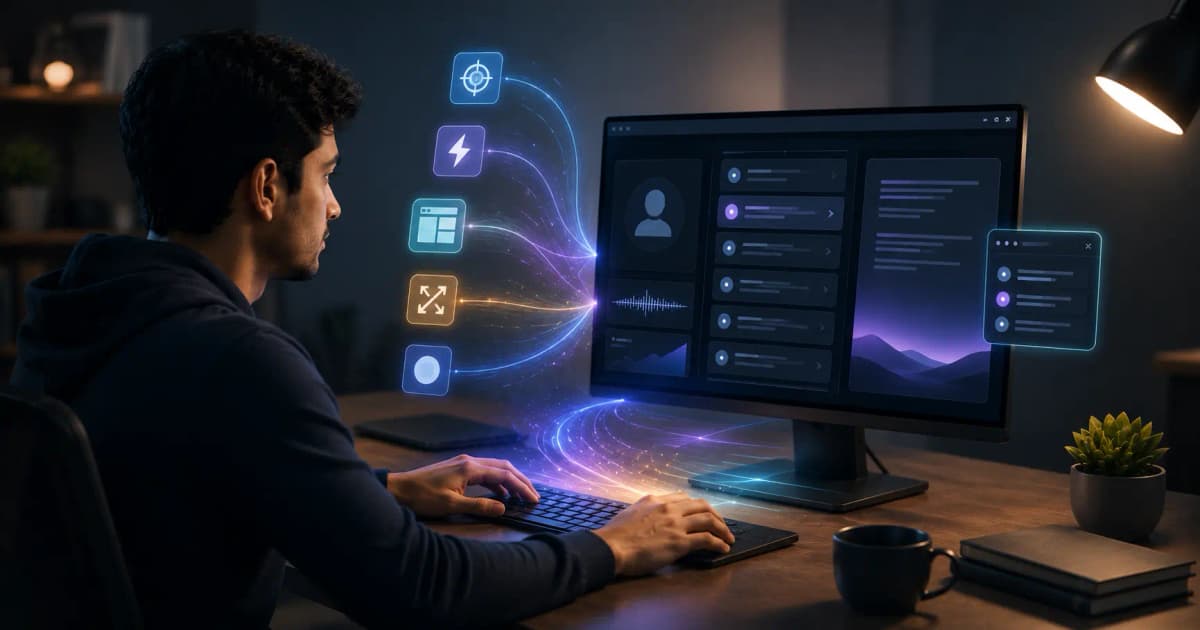
InterviewGPT keyboard shortcuts let Windows users move the app, trigger supported actions, and manage the interview layout without searching through menus. Compact mode reduces the header footprint while keeping the transcript and AI surfaces aligned with the current layout. Shortcuts are useful only after practice: an unfamiliar key combination can be more distracting than a mouse.
Use the live InterviewGPT shortcut reference for exact key combinations. This guide focuses on workflow and safety because mappings can change between releases.
What shortcuts are for
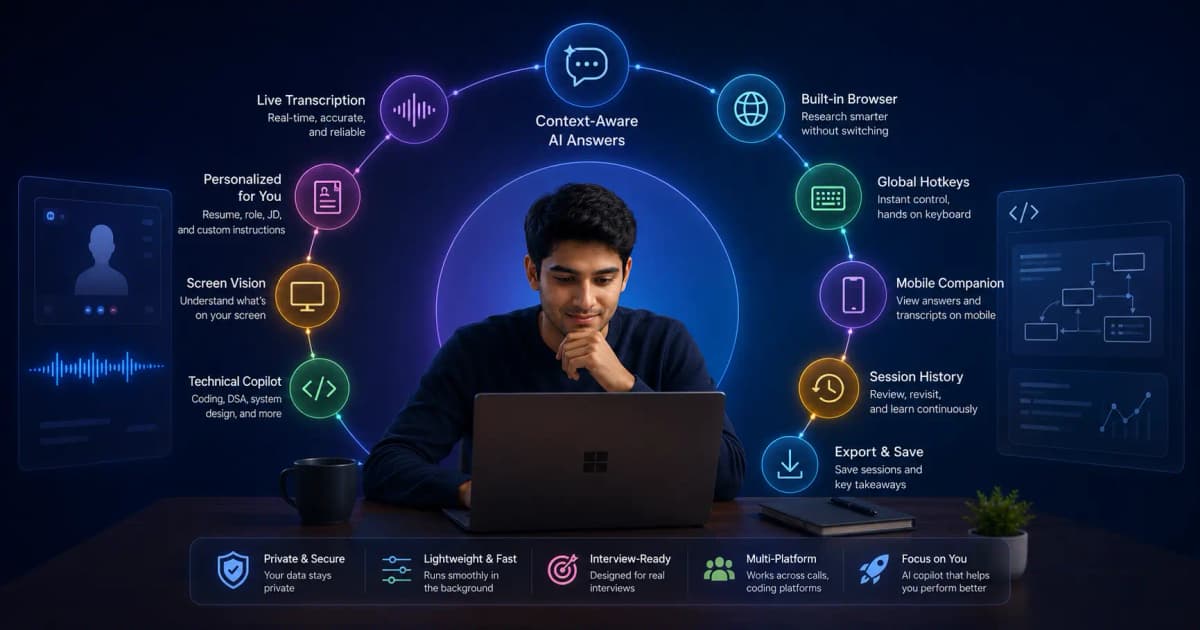
InterviewGPT’s shortcut system covers categories such as:
- moving or nudging the app;
- toggling the interface or transcript surface;
- requesting an AI answer;
- analyzing the screen;
- changing layout visibility;
- copying or navigating generated content;
- opening supported panels.
The desktop app coordinates multiple surfaces as one layout. Movement shortcuts should move the connected app stack rather than detaching only the header.
What compact mode changes
Compact mode reduces the main header footprint. It does not convert the transcript panel or answer panel into different features. When a panel is opened or closed, its restored bar position should be calculated from the current compact or default header state.
Use compact mode when:
- vertical space is limited;
- you want a smaller control surface;
- the transcript or answer panel needs more room;
- you have already memorized the important controls.
Use default mode while learning because labels and controls are easier to discover.
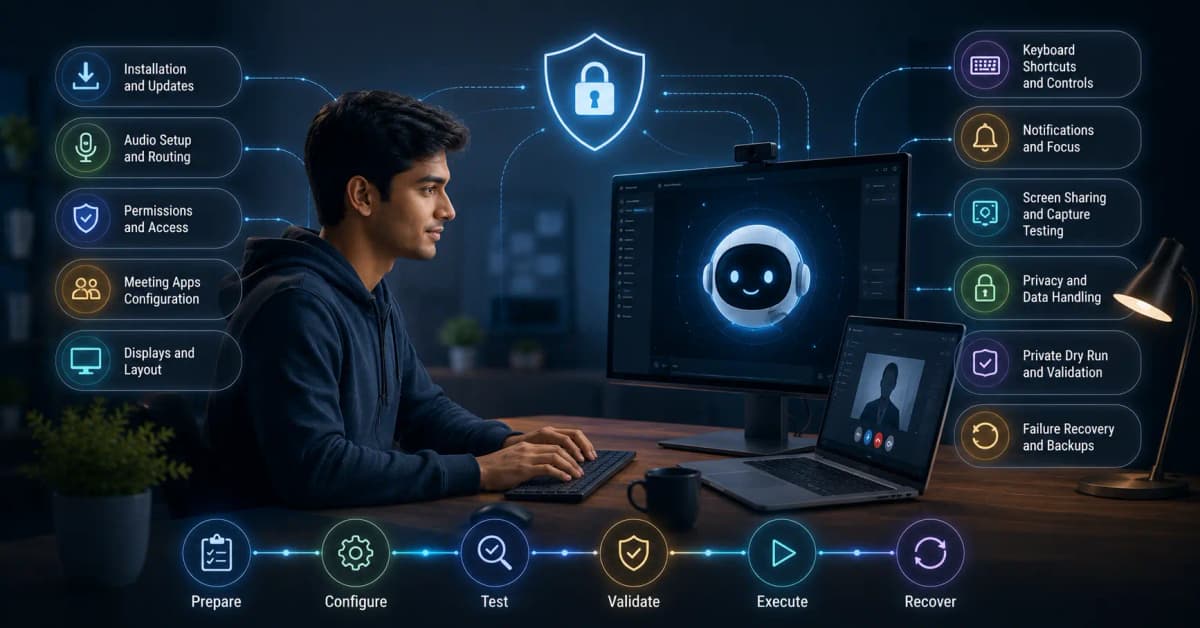
A safe practice sequence
Phase 1: learn four actions
Choose only the actions you expect to use most: move, AI answer, transcript visibility, and Analyze Screen. Read them from the official shortcut page and write them on a temporary note.
Phase 2: rehearse without a meeting
Open the desktop layout and trigger each action ten times. Confirm there is no conflict with Windows, the meeting app, screen recorder, accessibility software, or keyboard-layout utilities.
Phase 3: rehearse in a private call
Ask a friend or second account to read questions while you keep eye contact. Trigger actions without looking down. If you repeatedly press the wrong shortcut, simplify the set.
Phase 4: test compact and default layouts
Open and close the transcript and AI panels in both modes. Move the full app stack with mouse dragging and nudge controls. Check alignment, gaps, and multi-monitor behavior.
Prevent shortcut conflicts
Windows, browser extensions, meeting apps, GPU tools, clipboard managers, and accessibility utilities can reserve global keys. A conflict may cause both applications to react or neither to react.
Build a conflict table:
| Shortcut action | Windows result | Meeting-app result | InterviewGPT result | Keep? |
|---|---|---|---|---|
| Move/nudge | None expected | None expected | Full layout moves | Yes if reliable |
| AI answer | None expected | Check mute/camera keys | Answer request | Only if unique |
| Analyze Screen | None expected | Check share controls | Screenshot analysis | Only if permitted |
| Visibility | Check desktop shortcuts | Check meeting controls | Toggles intended surface | Verify twice |
Never discover a collision during a real interview.
Moving and positioning the app
Start with a position that does not cover the interviewer’s face, question text, code editor, or meeting controls. Keep equal spacing between the header, transcript surface, and AI answer panel. If the screen uses scaling above 100% or multiple monitors with different scaling, test dragging across boundaries.
The layout should remain stable while moving; dragging is not resizing. Use explicit panel-resize controls only when you intend to change answer-panel dimensions.
Resizing the AI answer panel
InterviewGPT allows the AI answer panel to be resized. Resize it before the interview to a comfortable width and height, then stop adjusting it. Excessively narrow text increases scrolling; excessively wide text makes lines harder to scan.
A practical target is enough width for short talking points and enough height for one answer structure without covering core meeting content. The transcript panel uses its own fixed horizontal layout rules.
Accessibility considerations
Shortcuts can reduce pointer movement, but they should not block Windows accessibility features. Test with your keyboard layout, sticky keys, screen magnification, voice control, and high-contrast settings. Keep focus indicators and readable font size more important than maximum compactness.
If a shortcut stops working
- Confirm InterviewGPT is running and the session is active.
- Check the current shortcut page for changes.
- Close utilities that may reserve the same key combination.
- Test from the default layout.
- Restart the app after an update.
- Report the exact action, app version, OS build, and conflicting software.
Do not repeatedly press an action that may trigger duplicate requests.
Bottom line
The best shortcut set is small, conflict-free, and practiced. Use compact mode after learning the controls, test panel transitions and full-layout movement, and keep the current shortcut reference available.
Visit InterviewGPT Keyboard Shortcuts, download the current Windows build, and rehearse in a private session.
Continue your Windows setup
Complete the Windows interview-copilot setup checklist and review the broader InterviewGPT feature guide.
Sources
This workflow was reviewed against InterviewGPT’s public shortcut page and current desktop IPC, compact-mode, and multi-window layout code on July 19, 2026.