

Free Invisible Browser for Interviews: Windows Setup and Safety Guide
Understand what an interview Invisible Browser does, its capture-protection limits, and how to set up and privately test InterviewGPT on Windows.
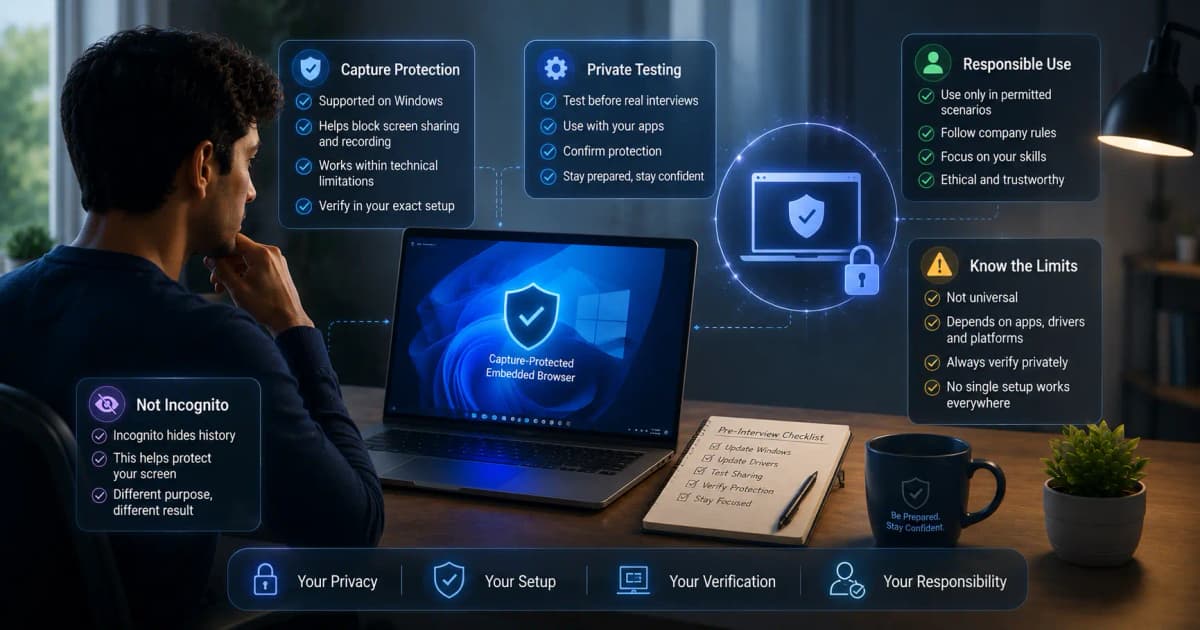
InterviewGPT’s Invisible Browser is a free embedded browser workspace inside the Windows desktop app. It is designed to stay out of common screen-share captures on supported Windows configurations. It is not the same as private/incognito browsing, and no desktop app can responsibly promise identical behavior across every capture tool, operating-system update, GPU path, or remote-desktop product.
The right setup is therefore: install, open, test privately, then decide whether the workflow suits your permitted use case.
What an Invisible Browser means
An interview Invisible Browser is an embedded desktop browser that uses operating-system capture-protection controls. It is different from private or incognito browsing: private mode manages local history and cookies, while capture protection affects how a local window appears through supported sharing and recording paths.
It is not a universal invisibility guarantee. Full-desktop, application-window, browser-tab, region, GPU, remote-desktop, recording, and enterprise-security capture paths can behave differently. Websites opened inside the browser still receive normal requests and may store cookies.
Use the browser only for permitted notes, public documentation, accessibility workflows, practice, or open-resource interviews. It does not grant permission to bypass a closed-book assessment, misrepresent your skills, record another person without consent, or upload confidential information.
Before you begin
You need:
- Windows 10 or later;
- a stable internet connection;
- the current InterviewGPT installer or portable build;
- a second account or device for a private meeting test;
- non-confidential sample content;
- permission to use notes or online resources in the relevant interview.
Close memory-heavy applications before a call if your PC is low on memory.
Step 1: choose installer or portable
The standard installer is the best default for a personal Windows computer. It integrates normal shortcuts and app management. The portable build can run without a full installation and is useful when you want a self-contained copy in a permitted location.
Both builds provide the same product family, but updates behave differently. The installed build is easier for most users to keep current. Portable users should verify the version manually before an important call. Compare the two on the download page before choosing.
Step 2: sign in and open the browser
After launching InterviewGPT, sign in through the official flow and open the Invisible Browser from the desktop dashboard. Use the browser like a focused reference workspace:
- Navigate to an allowed public resource or your own notes.
- Avoid entering sensitive credentials during the first test.
- Confirm basic navigation, scrolling, keyboard input, and resizing.
- Keep the number of open pages small to reduce clutter and memory use.
- Sign out of confidential websites when the session ends.
The feature is an embedded webview, so websites still receive ordinary network requests and may set cookies. “Invisible” refers to the intended capture behavior, not anonymity from websites.
Step 3: run a private capture matrix
Join a private call with a second account. View or record the shared output from the second device—not only from the InterviewGPT computer.
Test these share modes separately:
| Test | What to inspect |
|---|---|
| Entire desktop | Browser window, taskbar, Alt+Tab, notifications |
| Application window | Whether protected surfaces are omitted or masked |
| Browser tab | Whether the meeting app changes capture behavior |
| Region share | Boundaries while moving or resizing the app |
| Recording | Saved output, not only the live local preview |
| Multiple displays | Behavior when moving between screens with different scale settings |
Also minimize, restore, drag, resize, toggle compact mode, and change focus. Repeat the test after a Windows, meeting-app, graphics-driver, or InterviewGPT update.
Safe and responsible use
Appropriate uses can include an open-resource interview, permitted notes, accessibility support, public documentation, preparation, or a private mock interview. The feature does not authorize:
- breaking a closed-book assessment rule;
- accessing prohibited answers;
- recording people without consent;
- uploading confidential employer information;
- misrepresenting skills or experience.
If the interviewer or assessment policy prohibits external resources, follow that policy.
Troubleshooting common issues
The browser appears in the shared output
Stop the test and note the exact OS build, meeting app, share mode, and graphics configuration. Update InterviewGPT and repeat with a private account. Do not assume another share mode will behave correctly without verification.
The browser opens far from the main window
Move the app to the intended display, check Windows display scaling, and reopen the browser. Mixed DPI settings can change how desktop coordinates feel across monitors.
A website does not work in the embedded view
Some websites restrict embedded browsing, authentication, media, or popups. Use only supported public resources and never disable security controls merely to force a page to load.
The computer feels slow
Close unused tabs and applications, confirm available RAM, and test without screen recording. Browser, meeting, transcription, and recording workloads can compete for CPU, GPU, and memory.
Is the Invisible Browser really free?
The browser is included in InterviewGPT’s free offering as a manual browser feature. It should not be confused with unlimited free live AI. Transcription, answer generation and screen analysis use the free 10-minute sessions, paid credits or an Unlimited pass.
See what the free plan includes on the pricing page.
A five-minute pre-interview check
- Confirm the app version.
- Open only the resources you are permitted to use.
- Verify the intended monitor and scaling.
- Run the exact meeting app and share mode privately.
- Inspect the second participant’s view.
- Close confidential tabs and disable distracting notifications.
- Keep a normal fallback plan if the workflow changes.
Bottom line
InterviewGPT’s free Invisible Browser gives Windows users an embedded reference workspace with capture-protection behavior designed for common screen-share setups. Its value depends on correct testing and responsible use—not on an absolute invisibility promise.
Download InterviewGPT, run the private test matrix, and read what an Invisible Browser is for the underlying concepts.
Sources
Product behavior was reviewed against the InterviewGPT Windows codebase, official homepage, privacy policy, and terms on July 19, 2026.