
How to Hide a Window from Screen Share on Windows 10 & 11
Share one window, use a second monitor, use a capture-excluded app or hide it first: four ways to keep a window out of your screen share.
On Windows 10 and 11 there are four reliable ways to keep a window out of a screen share: share a single window or tab instead of your whole screen, put the private window on a second monitor and share only the first, use an app that Windows excludes from capture (supported from Windows 10 version 2004), or hide the window with a shortcut before you share. Turn on Do Not Disturb too, so pop-up notifications don't appear mid-share.
Each method has a catch, and the right one depends on whether you can control what you share. This guide walks through all four with steps for Zoom, Microsoft Teams and Google Meet, compares them in one table, and ends with a two-minute test. If you need a browser window that stays out of full-screen shares, the free Invisible Browser for Windows uses the Windows capture-exclusion method described below.
Method 1: share a single window or tab
The simplest way to hide everything else is never to send it. All three major meeting apps let you share one window instead of the whole desktop. Whatever else you have open, including notifications and other apps, stays on your side.
| App | How to share one window |
|---|---|
| Zoom | Click Share, then pick the application window (not "Screen") in the Basic tab |
| Microsoft Teams | Click Share, then choose a specific window instead of the entire screen |
| Google Meet | Click Present now (Share screen), then choose A window or A tab instead of Your entire screen |
The catch: you don't always choose. Some interviewers ask you to share your entire screen, especially for coding rounds. And while you share one window, the other side keeps seeing that window even when you click into another app, which can confuse a live walkthrough. In Zoom, a setting under Share screen called "Windows shared from an application" decides whether you share one browser window or all windows of that app, so check it once before a call.
Method 2: use a second monitor and share only the first
If you have an external monitor, each display appears as a separate "Screen" option in Zoom, Teams and Meet. Share Screen 1, and whatever is on Screen 2 stays private. This works on any Windows version and needs no extra software.
The catch: it depends on hardware, and it shows on camera. If your eyes keep moving to a monitor off to the side, the person on the call can see that. Some interviewers also ask candidates to share every display.
Method 3: use a window that Windows excludes from capture
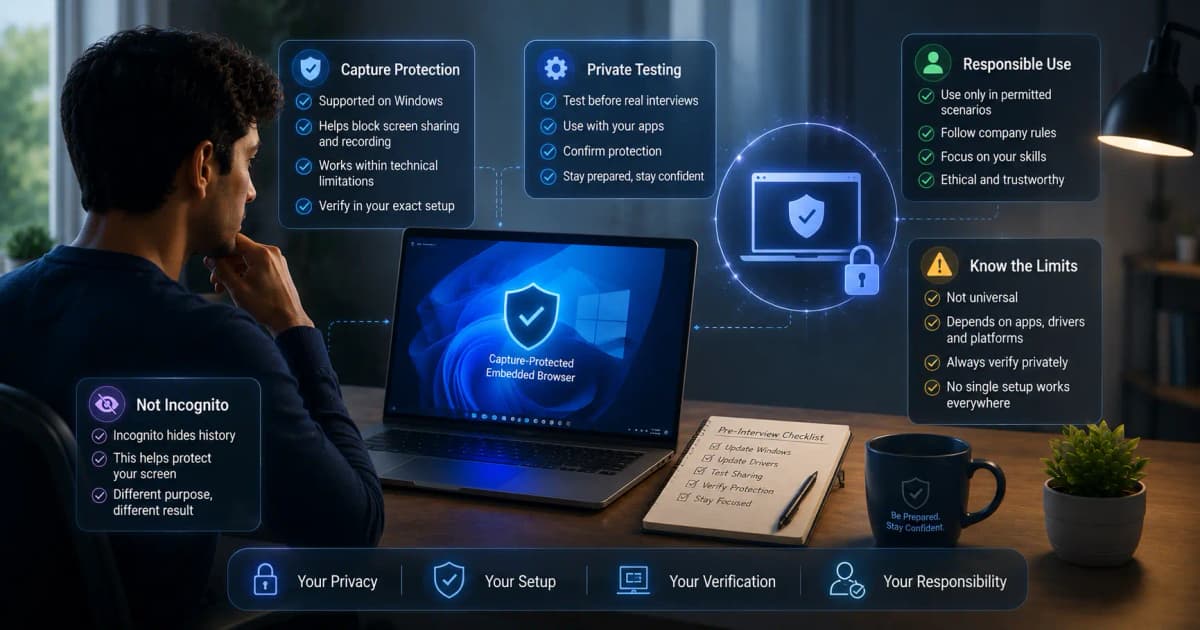
Windows has a built-in setting called display affinity. An app can mark its own window with a value named WDA_EXCLUDEFROMCAPTURE, and Microsoft's documentation describes the result: the window "is displayed only on a monitor. Everywhere else, the window does not appear at all." The window stays visible to you, while screen shares, recordings and screenshots taken through the standard Windows capture paths receive the desktop behind it.
Meeting apps use this kind of exclusion themselves. Zoom's support pages note that, by default, the Zoom window and meeting controls are not shared while you share your screen. You see your controls; the other side doesn't.
Three limits are worth knowing:
- It needs Windows 10 version 2004 or later. On older versions, the same flag only blanks the window's contents, so the window appears as an empty box in the share. Press
Win + R, typewinverand check. - Microsoft's documentation says the window "must belong to the current process", so only the app that owns a window can set this. You can't apply it to Chrome, Notepad or any other app through a Windows setting; you need an app built to use it.
- Microsoft notes that, unlike a security feature or DRM, there is no guarantee it protects content in every case, for example from someone photographing the screen.
InterviewGPT's apps use this method. The free Invisible Browser opens ChatGPT, Gemini, Claude or any site in a window excluded from capture, and the InterviewGPT desktop app does the same for its transcript and answers. Both hide and restore with Ctrl + Alt + H.
Method 4: hide or minimise before you share
For windows that can't be excluded from capture, hide them before you start sharing. These Windows shortcuts help:
| Shortcut | What it does |
|---|---|
Win + Down arrow | Minimises the active window (press twice if it is maximised) |
Win + D | Shows the desktop; press again to bring windows back |
Alt + Tab | Switches windows; careful, the switcher itself is visible in a full-screen share |
The catch: a minimised window is gone for you too, and taskbar thumbnails, the Alt + Tab switcher and notifications can still flash it on a full-screen share. Close anything you really don't want seen.
Stop notifications from appearing mid-share
Notification banners (WhatsApp Web, Outlook, Teams chats) are the most common way private content leaks into a full-screen share. Windows 11 has Do Not Disturb for this:
- Open Start > Settings > System > Notifications.
- Turn on Do not disturb before the call, or click the bell icon with "zZ" in the notification centre.
- Expand Turn on do not disturb automatically and tick When duplicating the display and When using an app in full-screen mode.
Also close messaging apps and browser tabs with live notifications before you start.
Which method should you use?
| Method | Works on full-screen share? | Needs | Main weakness |
|---|---|---|---|
| Share one window or tab | Not applicable (you aren't sharing the screen) | Nothing | You may be asked to share the whole screen |
| Second monitor | Yes, if you share only the other display | An external monitor | Eye movement is visible; you may be asked to share all screens |
| Capture-excluded app | Yes | Windows 10 version 2004+ and an app built for it | Only works with apps that support it |
| Hide or minimise | Only while hidden | Nothing | You can't see the window either; switchers and previews can expose it |
| Do Not Disturb | Stops notification banners | Windows 11 settings | Doesn't hide windows themselves |
Most people combine two: share a single window when they can, and keep anything private in a capture-excluded app in case they are asked to share the full screen.
Test it before a real call
Your Windows build, graphics driver and meeting app version all affect what gets captured. Test once, privately:
- Join a meeting from your PC and from your phone with a different account.
- Open the window you want hidden, then share your entire screen from the PC.
- Check the phone: the window should be absent and the desktop behind it visible.
- Start the meeting app's recording, stop it, and play it back.
- Press
Win + Shift + S, take a screenshot, and paste it into Paint.
Our guide on what interviewers can see when you share your screen covers what each sharing mode sends and what no software can hide, such as your camera and audio. For setting up the private browser, follow the Invisible Browser setup guide.
Use these methods for privacy on live calls, such as keeping notes, messages or other work out of view. They are not a way around proctored online tests, which have their own rules; respect any instruction a company or school gives you about AI use. Our piece on screen-sharing privacy and ethics goes into where the lines are.
If you want a window that stays out of full-screen shares without extra setup, download the free Invisible Browser. It's free forever, with no card and no trial timer.