
Screen Vision AI Interview Assistants: Coding, Diagrams, and Slides
Learn how Screen Vision analyzes coding prompts, diagrams and slides, how InterviewGPT uses screenshots, and how to test accuracy responsibly.
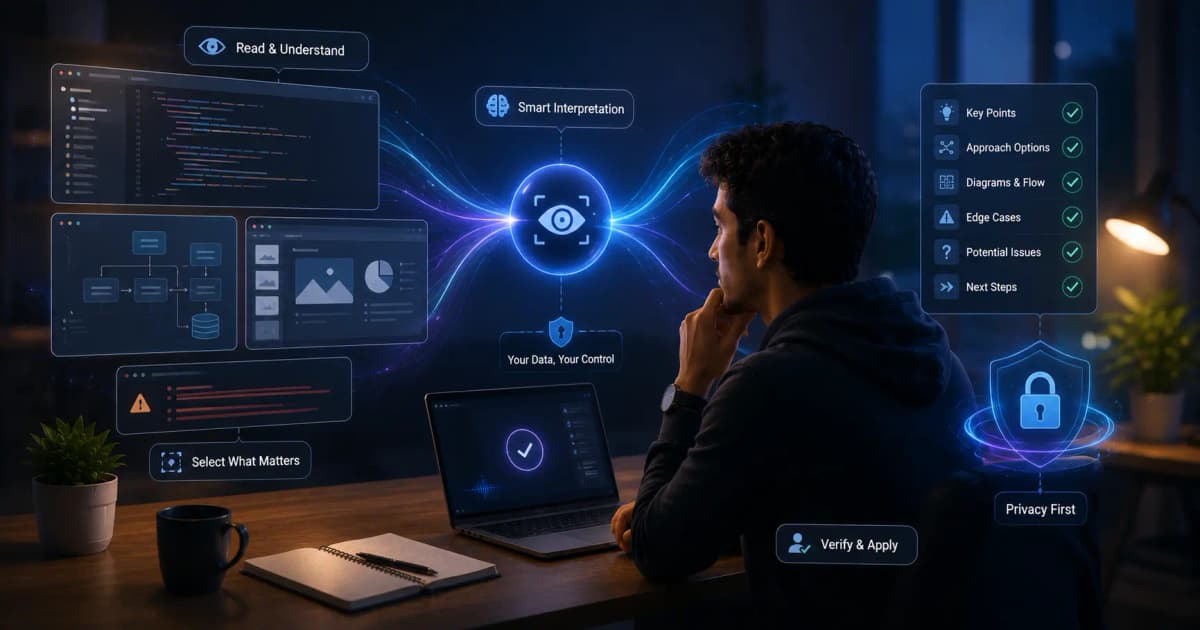
Screen Vision is the ability to capture visible on-screen material and ask an AI model to interpret it. In InterviewGPT, the Analyze Screen workflow can send a desktop screenshot for assistance with coding prompts, diagrams, or slides. The result is only as reliable as the captured image, the model’s visual interpretation, and the context supplied by the candidate.
Use it for permitted practice and open-resource situations—not to bypass closed-book assessment rules.
What Screen Vision can help interpret
Coding prompts
It can identify visible requirements, examples, input/output formats, and constraints. A useful response should restate the problem and surface ambiguity before proposing an algorithm.
System-design diagrams
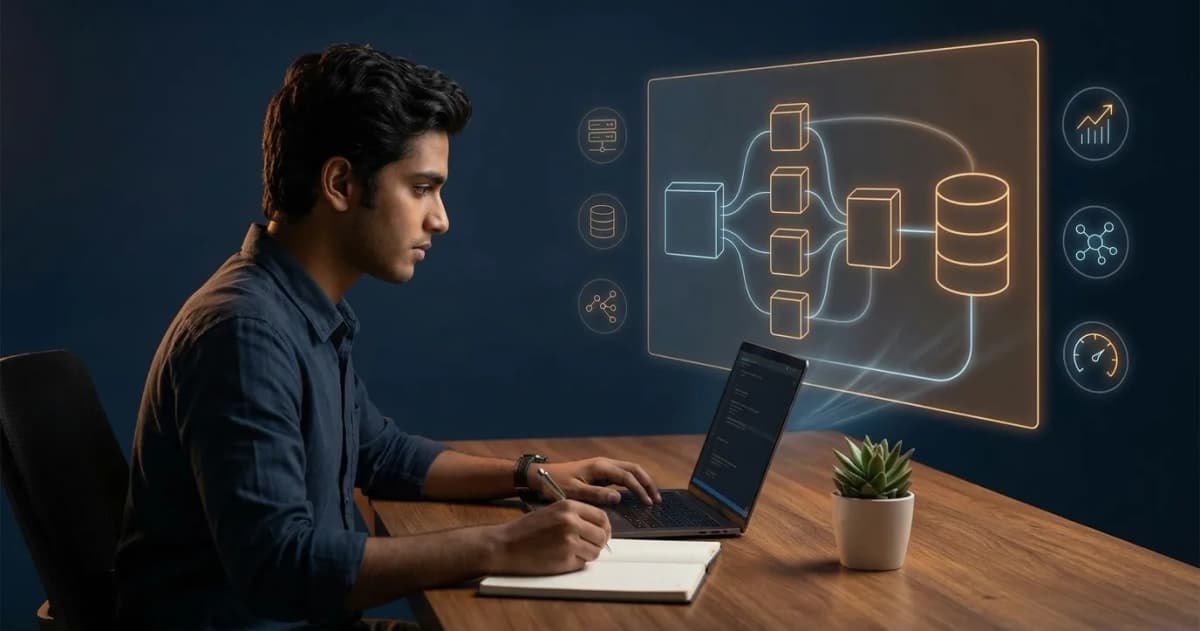
It can describe components, data flow, storage, queues, caches, and potential bottlenecks. It cannot know hidden traffic assumptions unless you provide them.
Slides and case material
It can summarize visible charts, headings, and relationships. Small labels, unusual notation, and low-contrast charts may be misread.
Error messages and code
It can help explain a visible stack trace or code fragment. Always verify line numbers, language, library version, and surrounding context.
The Screen Vision workflow in InterviewGPT
The desktop app exposes an Analyze Screen command. It captures a desktop preview, adds a screen item to the session timeline, and streams the AI analysis into the answer surface and connected mobile companion. This separates a visual request from the current audio transcript so the candidate can choose when a screenshot is relevant.
The screen capture may contain sensitive information. Close unrelated windows and notifications first.
A reliable four-step method
1. Frame
Show only the relevant problem or diagram. Increase zoom so constraints and labels are readable. Remove personal messages, tokens, customer names, and unrelated browser tabs.
2. Confirm
Before using any suggestion, check that the AI correctly identified:
- the problem statement;
- inputs and outputs;
- constraints;
- examples;
- diagram labels;
- the programming language or system boundary.
3. Reason
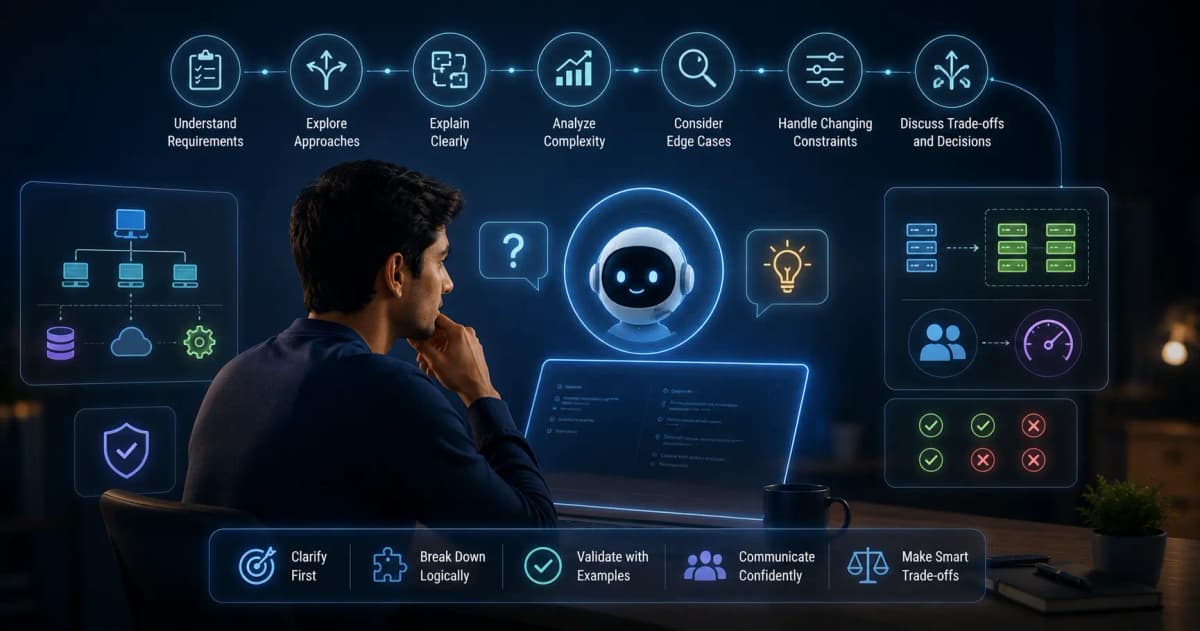
Ask for assumptions, approach, alternatives, complexity, trade-offs, and edge cases. For code, request a small example trace before implementation.
4. Verify
Test the proposed reasoning against the visible examples and your own knowledge. If one extracted number is wrong, the entire approach may be wrong.
Quality problems to expect
| Failure mode | Why it happens | What to do |
|---|---|---|
| Missing text | Text is too small on screen | Zoom in so the text is large, then capture again |
| Wrong symbol | Font or contrast is unclear | Read the symbol aloud or type it into context |
| Hallucinated requirement | Model fills a gap | Return to the original prompt and confirm |
| Outdated API advice | Library version is absent | State the version and use official docs |
| Diagram overconfidence | Scale and traffic are unknown | Supply assumptions and compare alternatives |
Coding interview example
Suppose the screenshot contains a graph problem. A disciplined Screen Vision request would ask:
- What are the exact inputs, outputs, and constraints visible?
- Which graph representation fits those constraints?
- Is BFS, DFS, topological sorting, or another method appropriate—and why?
- What are time and space complexity?
- Which edge cases should be tested?
Only after confirming those points should you write code. This produces a better interview explanation than asking for a complete solution immediately.
System-design example
For an architecture diagram, start with requirements and scale. Identify the read/write pattern, consistency needs, failure domains, data ownership, and observability. Ask Screen Vision to explain what is visible, then add missing assumptions yourself. A diagram is evidence, not the full system design.
Privacy and interview rules
Never capture:
- private messages or email;
- passwords, tokens, or personal identifiers;
- proprietary source code without permission;
- confidential client or employer documents;
- another person’s image or conversation without required consent.
If an assessment prohibits external assistance, do not use Screen Vision. For broader guidance, read privacy, rules and ethics.
How InterviewGPT’s technical workflow fits
Screen Vision works alongside live transcription, personalized context, AI answer guidance, and technical interview help. Visual analysis can capture the prompt; the technical workflow can help structure an explanation around approach, complexity, edge cases, and system-design trade-offs.
Read the coding and system-design guide for the complete explanation-first process.
Bottom line
Screen Vision is most useful as a controlled input method. Capture a clean permitted image, confirm what the AI read, reason step by step, and verify the result. A screenshot does not remove the need for technical understanding or permission.
Download InterviewGPT and test Analyze Screen using a public sample problem before an important interview.
Sources
The workflow was verified against the InterviewGPT desktop and mobile session code and the official feature page on July 19, 2026.