
LinkedIn Profile Photo Tips: 12 Rules for a Professional Photo
12 rules for a LinkedIn photo recruiters trust, LinkedIn's upload specs, a phone shooting guide, and when AI headshots are okay.
A good LinkedIn profile photo is a recent, sharp, square picture of only you, framed from the chest up, looking at the camera with a natural smile, against a plain background, in the clothes you would wear to work. Upload at least 400 × 400 pixels as a JPG or PNG under 8MB, and keep its visibility set to everyone so recruiters outside your network can see it.
LinkedIn's own help page says members with a profile photo get up to 2X more profile views and 3X more connection requests, so it is worth getting right. Below are 12 rules with the reasons behind them, the exact upload specs, how to take the photo with a phone, and where AI headshots fit. If you don't have a usable photo today, an AI headshot generator that keeps your real face can turn one clear selfie into a square professional headshot in about 10 seconds.
LinkedIn profile photo size and upload specs
These are LinkedIn's published requirements. Most upload problems come from a wrong file type or a very large phone image.
| Setting | LinkedIn requirement | What to do |
|---|---|---|
| Pixel size | Between 400 × 400 and 7680 × 4320 pixels | Export a square image of about 800 × 800 to 1000 × 1000 pixels |
| File size | Maximum 8MB | Phone photos are often fine; compress only if the upload fails |
| File type | JPG or PNG; GIFs are not supported | Save as JPG |
| Cropping | LinkedIn recommends a photo that won't need much cropping | Crop to a square with your face in the centre before uploading |
| Display shape | Shown as a circle on your profile and in search | Leave space around your head so the circle doesn't cut it |
| Background (banner) photo | Recommended 1584 × 396 pixels | Use a simple image related to your field, or a plain colour |
12 rules for a LinkedIn photo that works
1. Make sure it actually looks like you today
LinkedIn's Professional Community Policies say: "Do not use an image of someone else, or any other image that is not your likeness, for your profile photo." Beyond the policy, there is a practical reason. The interviewer who meets you on a video call should recognise you. A photo from five years and a different hairstyle ago creates a small moment of doubt you don't need.
2. Only you in the frame
Cropped group photos and wedding pictures are easy to spot: half a shoulder at the edge, festive lighting, someone's hand. Use a photo taken for this purpose.
3. Frame from the chest up
Your profile photo shows up as a small circle in search results and comments. Full-length photos turn you into a tiny figure, and extreme close-ups feel uncomfortable. A guide on LinkedIn's sales blog suggests capturing "waist-up or mid-chest up" and avoiding head-only and full-body images. For the circle crop, mid-chest up is safer.
4. Look at the camera
Eye contact with the lens reads as confident and open. Looking away works for an artistic portrait; on a professional profile it makes you seem distracted.
5. Smile naturally
A slight smile that reaches the eyes looks approachable. A serious expression is fine for some fields, but a forced, wide grin looks posed. Take 20 shots and pick the one that looks most like you on a good day.
6. Keep the background plain
A plain wall, a softly blurred office or an outdoor background with no clutter keeps attention on your face. Avoid beds, cupboards, bikes, temples and crowded rooms. LinkedIn's sales blog advises a solid, bright background and, in most cases, avoiding plain white, which can make the photo look washed out.
7. Dress for the job you want
For IT, consulting, banking and most corporate roles, a solid-coloured formal shirt or blouse, or a kurta with a clean collar, works. A blazer is optional. Avoid busy prints, logos and very bright colours that pull focus. If your field is casual (design, startups), a neat casual top is fine, as long as it is clean and ironed.
8. Use soft light from the front
Stand facing a window during the day, not with the window behind you. Harsh overhead tube lights and direct afternoon sun create shadows under the eyes. Late-afternoon light near a window or on a balcony is easy to get right.
9. Keep it sharp
Blurry or pixelated photos look careless. Clean the phone lens, tap your face to focus, and hold the phone steady or put it on a stack of books. Don't take a screenshot of an old photo; that throws away resolution.
10. No filters, sunglasses or heavy editing
Beauty filters smooth your skin into plastic, and colour filters change your skin tone. Sunglasses and caps hide the features people need to recognise you. Small fixes are fine: brightness, straightening, cropping.
11. Use one photo across platforms
Recruiters often check your LinkedIn after seeing your Naukri profile or resume. The same photo on LinkedIn, Naukri and your resume (if you use one there) makes you easy to recognise and looks consistent. Our guide on whether to put a photo on your resume in India explains when a resume photo helps.
12. Check who can see it
LinkedIn lets you limit photo visibility to 1st-degree connections, your network, all LinkedIn members, or anyone. The default is Anyone/Everyone. If you changed it to connections only, recruiters who aren't connected to you see a placeholder instead. To check: click Me, then View Profile, then click your photo and look at the visibility setting.
Quick check: do and avoid
| Do | Avoid |
|---|---|
| Recent photo, only you | Cropped group, wedding or festival photos |
| Chest-up framing, face centred | Full-length photos or extreme close-ups |
| Eye contact, natural smile | Looking away, forced grin, pout |
| Plain or softly blurred background | Bedroom, cluttered office, vehicles |
| Solid-colour work clothes | Logos, loud prints, gym or party wear |
| Soft light from a window in front | Backlight, harsh overhead or mid-day sun |
| Sharp, square, at least 400 × 400 px | Screenshots, blurry zooms, GIFs |
| Brightness and crop fixes only | Beauty filters, sunglasses, caps |
How to take a good LinkedIn photo with your phone
You don't need a studio. A phone from the last few years, a window and a friend are enough, and the whole thing takes about 15 minutes.
- Pick a plain wall facing a window in the late afternoon, or any time the light is bright but not direct.
- Wear a solid-coloured shirt or top, and do your hair the way you usually wear it to work.
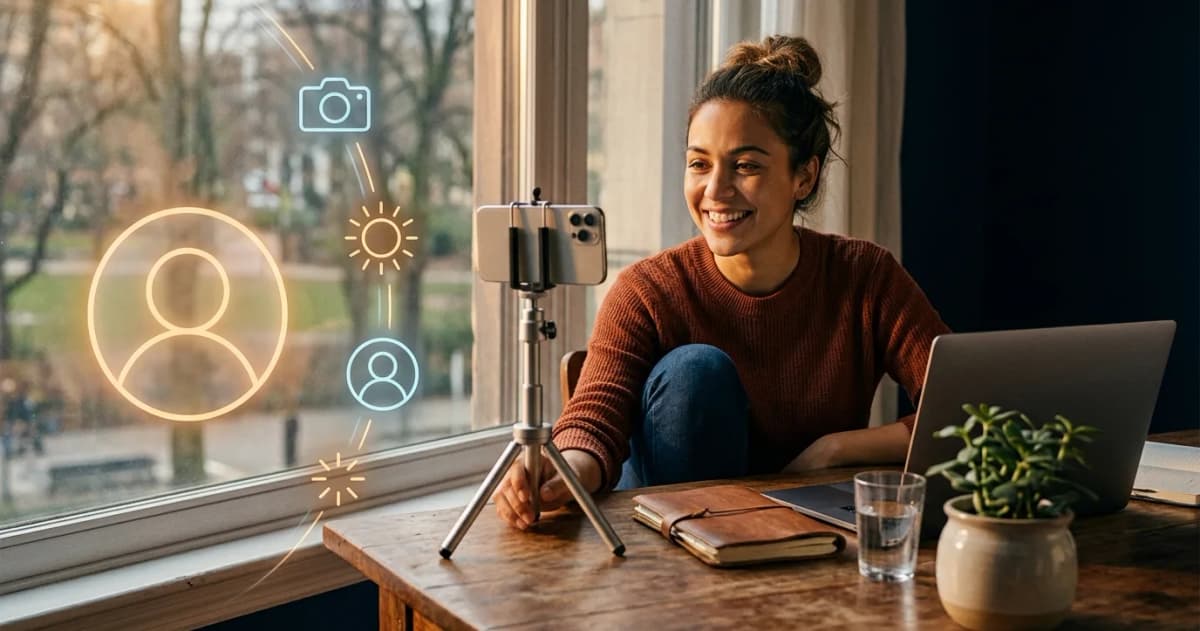
- Ask a friend to hold the phone at your eye level, about one to one and a half metres away. Use the back camera; it is sharper than the front one.
- Turn your shoulders slightly away from the camera and your face back towards it. It looks more relaxed than standing square.
- Take 20 to 30 photos while talking normally, so your expression stays natural.
- Pick the sharpest one where you look like yourself. Crop it square with space above your head, and save as JPG.
Are AI headshots okay on LinkedIn?
An AI headshot is fine on LinkedIn as long as it still looks like you. The rule that matters is LinkedIn's likeness rule: the photo has to be a likeness of you. Many AI headshot tools swap in a sharper jaw, lighter skin or a different age, which defeats the purpose. When the interviewer opens the video call, the face should match.
AI headshots solve setting problems: no good background at home, bad light in a hostel room, no one to take the picture, or no formal clothes handy. Check the result against a normal selfie. If a friend would hesitate to say "that's you", don't use it.
| Option | Best when | Watch out for |
|---|---|---|
| Phone photo at home | You have a window, a plain wall and a friend | Light and background take a few tries |
| Local photo studio | You want printed copies or several looks in one sitting | Over-edited skin and dated backdrops; ask for minimal retouching |
| AI headshot from your selfie | No good setting at home, or you need a photo today | Tools that change your face; always compare with a real photo |
InterviewGPT's AI headshot generator takes one clear photo and produces a square headshot in about 10 seconds. It keeps your face, hairstyle, skin tone and age without a beauty filter, and you choose one of six looks (clean studio, dark studio, casual, at work, outdoors, city portrait), the background colour, a blazer or your own clothes, and a smile or serious expression. Each headshot costs ₹199, and your photo is used only to make it. You can try the AI headshot generator and add the result to your resume in one click.
After the photo: the rest of your profile
A good photo gets the click; the headline and About section decide what happens next. If you are a student or recent graduate, our guide to a LinkedIn profile for freshers covers the headline, About section and skills with examples. And if you use the same details on your resume, keep them in line with the resume format for freshers, so recruiters see one consistent story.